Account Security: 2FA, Passkeys and Sessions
Secure your SolumeCore account with two-step verification, passkeys, backup codes, trusted devices, session control and account deletion.
Your SolumeCore account controls servers, invoices and API keys, so it is worth locking down properly. The client panel gathers every control in two places: Account → Security (protection checklist, two-step verification, backup codes, passkeys and sign-in methods) and Account → Devices and sessions. This guide explains each control, what it protects against and what to do if something goes wrong.
The quickest path for most people: confirm your email, turn on two-step verification, save your backup codes and add a passkey. The panel rates your account as "Well protected", "Good, could be better" or "Needs your attention" and shows which step is still missing.
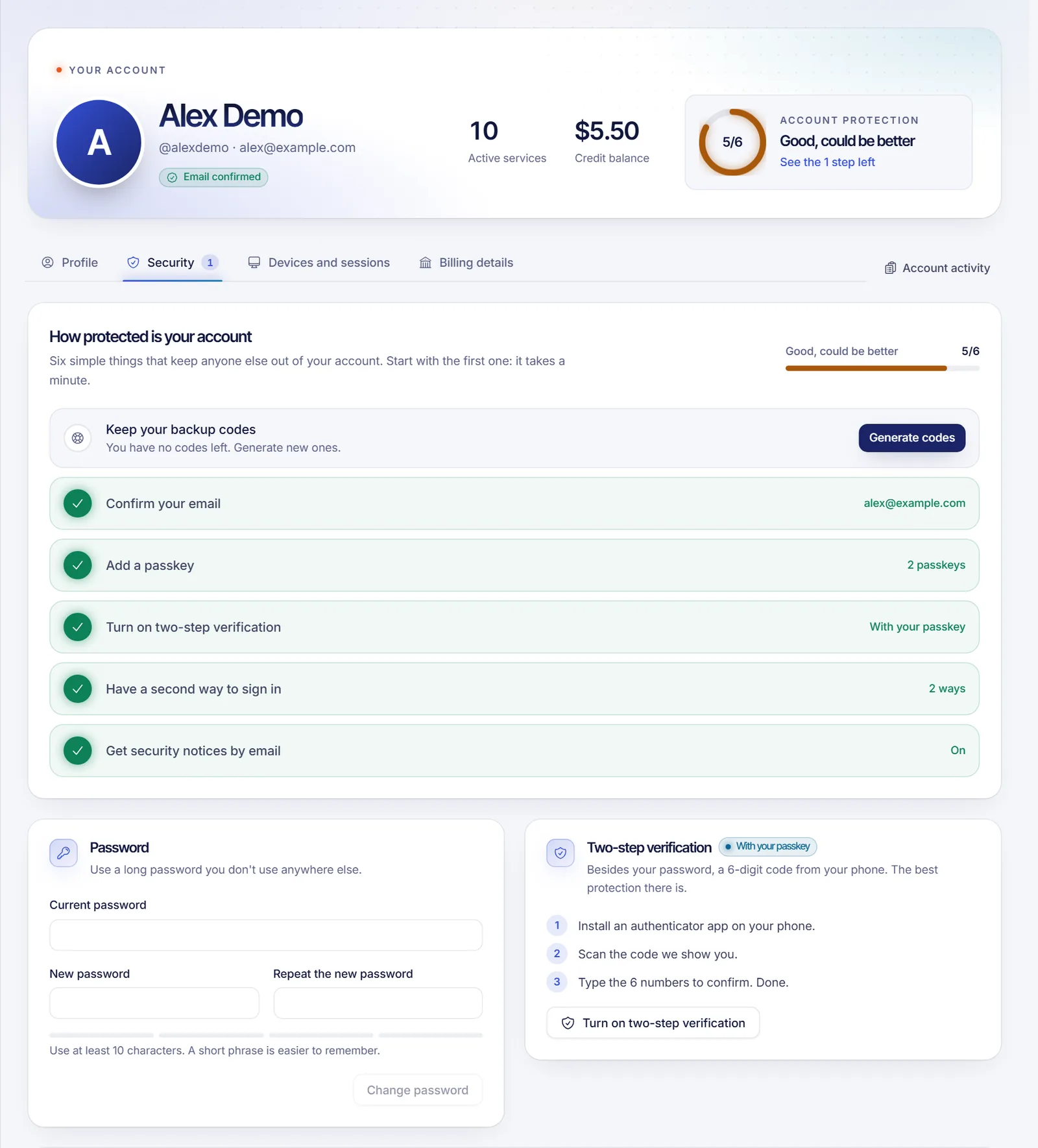
The protection checklist
At the top of the Security tab, the "Account protection" card tracks these items:
| Step | Why it matters |
|---|---|
| Confirm your email | We can reach you, and you can recover the account. |
| Add a passkey | Sign in with fingerprint, face, device PIN or a security key. |
| Turn on two-step verification | A stolen password alone is not enough to get in. |
| Keep your backup codes | A way in if you lose your phone. |
| Have a second way to sign in | Link Discord or Google, or create a password, so you never get locked out. |
| Get security notices by email | A message when someone signs in from a new device or changes something important. |
Two-step verification (2FA)
Two-step verification asks for a 6-digit code from an authenticator app in addition to your password. The code changes every 30 seconds and works without internet; any standard authenticator app will do.
To turn it on, open Account → Security → Two-step verification and follow the three steps: install an app, scan the QR code (or type the setup key by hand), and enter the 6 digits to confirm. From then on, signing in with your password also asks for the code.
You can turn it off from the same card. That asks for your password and a current code, because it lowers the protection of the account.
Important: if you lose your phone and have no backup codes, you will have to contact support and prove it is you. Generate backup codes as soon as you enable 2FA.
Backup codes
While two-step verification is on you can generate a set of backup codes. Each code works once and lets you sign in if you lose your authenticator. The panel shows how many you have left and warns you when you are running low.
- Store them in a password manager or print them. They are shown only once; you can copy them all or download a
.txtfile. - Generating a new set makes the previous codes stop working.
- Backup codes only exist alongside two-step verification, so turn that on first.
Passkeys
A passkey lets you sign in with your fingerprint, face, device PIN or a hardware key such as a YubiKey. There is no password to remember and nothing to phish. You can register several (one per device) and give each a recognizable name in Account → Security → Passkeys.
A passkey can do three things:
- Sign you in without a password.
- Work as a second factor after your password ("Ask for my passkey after my password"). If you lose it, a backup code or a code emailed to you still gets you in.
- Confirm sensitive actions (see below).
Passkeys are tied to the panel's own domain, so one created for SolumeCore does not work on any other site. If the panel says "Passkeys aren't available right now", SolumeCore has switched the feature off; your password and other methods keep working. Your browser must also support passkeys (a recent Chrome, Edge, Safari or Firefox).
Sign-in methods: password, Discord and Google
Under "Sign-in methods" you can link or unlink Discord and Google, and create a password if you registered through one of them. The panel will not let you unlink your only way in: create a password first. A password (at least 10 characters) can also open SFTP on game servers, but only while two-step verification is off: once it is on, the account password is refused for SFTP and you need an SFTP-specific password or an SSH key instead, so nobody gets in with a single factor. See SFTP connection details.
Devices and sessions
Open Account → Devices and sessions to review where you are signed in.
- Devices lists the browsers you have signed in from. A device marked as trusted does not ask for the two-step code again for a while (30 days by default). "Stop trusting" makes it ask again; "Revoke" closes its sessions and treats the next sign-in from it as a new device.
- Open sessions shows every active session with its device, IP address and sign-in date. "Sign out" closes one; "Sign out everywhere else" keeps only the browser you are using. Do this if you ever signed in on a computer that is not yours.
A session stays valid for 30 days by default before you have to sign in again. Changing your password leaves other sessions open, so close them yourself in this tab if you suspect a problem.
When someone signs in from a browser we have not seen before, SolumeCore emails you (the very first sign-in of a new account does not). If you do not recognise it, revoke the device and change your password.
Confirming sensitive actions
For actions that move money or cannot be undone, such as cancelling a service immediately, accepting automatic billing or removing a saved card, the panel asks you to "Confirm it's you" with your password, a 2FA code, a passkey or, if your account has none of those, a code emailed to you. The confirmation lasts 5 minutes. This is on by default, and support staff viewing your account cannot carry out those actions on your behalf.
SSH keys
The Security tab also hosts your SSH keys, public keys you register once for key-based SSH access to your servers. Adding or removing one asks you to confirm it is you.
Account activity
Account → Account activity lists who did what and from where: sign-ins (successful and blocked), password changes, device revocations, API key creation and actions on your services, filterable by Account, Services, Games and Sign-ins. If support makes a change while viewing your account, it is recorded there too.
After repeated failed sign-in attempts, further attempts for that email from that IP address are temporarily blocked. Wait a while and try again, or reset your password from the sign-in page.
API keys
Keys for the Client API are created in Account → API & webhooks. Treat a key like a password: it is shown once and you can revoke it at any time. More in Account API keys.
Deleting your account
Account → Profile → Delete account permanently removes your data, invoices, tickets and history. Active services and unpaid invoices must be settled first, and the panel lists what is blocking you. After you confirm by typing your username, a grace period starts (14 days by default) during which the account works normally and you can cancel the deletion. This self-service option is switched off by default; if you do not see it, open a ticket and support will do it for you.
An account that never confirms its email is removed automatically after a short window (48 hours by default), so confirm it right after you register.
Recommendations
- Use a long, unique password and a password manager.
- Prefer an authenticator app or a passkey, and keep backup codes offline.
- Review Devices and sessions now and then and revoke anything unfamiliar.
- Never share a verification code, backup code or API key with anyone, including people who claim to be from support.
Related documents
- Client panel tour
- Delegated access and subusers
- DDoS protection and firewall
- Acceptable use and abuse measures
FAQ
Do I need two-step verification if I already use a passkey?
No. A passkey is already a strong sign-in method and can act as your second factor. Many people keep both a passkey and an authenticator app so there is always a fallback.
I lost my phone. How do I get into my account?
Use one of your backup codes at the sign-in prompt. If a passkey is set as your second factor, a code emailed to you also works. With neither, contact support through the contact page so staff can verify your identity.
How do I change the email on my account?
Open a ticket asking for the change. Support makes it after checking that it is really you.
Can I stay signed in on my own computer?
Yes. Sessions last 30 days by default. Mark your own computer as a trusted device to skip the two-step code on it, and revoke it if you ever lose it.
Is the "Delete account" option available to everyone?
That depends on how SolumeCore has configured the platform. If you do not see it, a ticket reaches the same result.