How to Point a Domain to Your VPS (A Record Guide)
Point your domain to the IP address of your SolumeCore VPS with an A record, check that it works and add HTTPS. Step by step for websites and applications.
To point a domain to your VPS, copy the server's public IP address from the dashboard and create an A record with that address at the company that manages your domain's DNS. After a few minutes to a few hours, the domain reaches your server. The dashboard does not manage the DNS of a VPS or issue its certificates, so the web server and HTTPS are yours to set up.
Before you start
- You need a domain you already own, bought at any registrar. SolumeCore does not sell domains.
- Have access to the place where its DNS is managed: your registrar or a DNS provider such as Cloudflare.
- Your VPS must be online. If you want a website to answer, a web server must be installed and ports 80 and 443 must be open.
Step 1: Get the IP address of your VPS
- Sign in to the SolumeCore dashboard.
- Open VPS & VDS in the left menu and click your server.
- Click Connect. In the How to connect panel, copy the IP address.
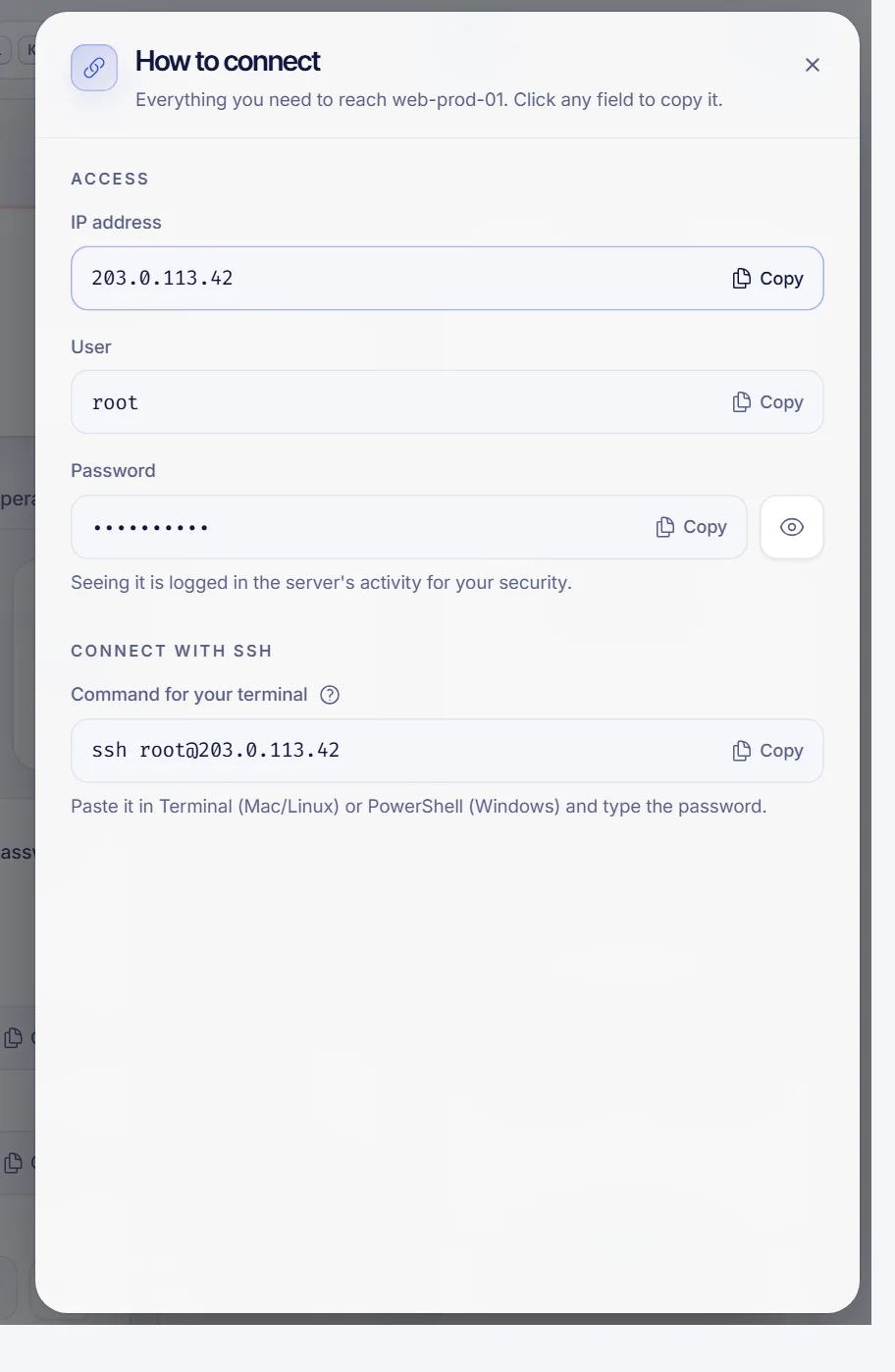
Step 2: Create the A record
- Sign in to your DNS provider and open the DNS records of the domain.
- Click to add a record and choose type
A. - In Name (sometimes Host) type
@for the root domain, or a name such aswwworappfor a subdomain. - In the value (sometimes Points to) paste the IP address of your VPS.
- Leave the TTL on automatic or pick a low value such as 5 minutes, then save.
You will usually want two records, one for the root and one for www:
| Type | Name | Value |
|---|---|---|
A |
@ |
203.0.113.10 (your VPS IP) |
A |
www |
203.0.113.10 |
If your VPS also has an IPv6 address, create an AAAA record the same way with that address.
Delete any other A record with the same name that points somewhere else. If a name has two records, visitors are sent to either one at random.
If you use Cloudflare, keep the records on DNS only (grey cloud) until everything works. You can turn the proxy on later if you want it for a website.
Step 3: Check that it works
dig +short yourdomain.com A
dig +short www.yourdomain.com AResolve-DnsName yourdomain.com -Type A
Resolve-DnsName www.yourdomain.com -Type AWhen both commands return the IP of your VPS, the DNS is right. If you still see the old address, wait and try again; see How to check DNS propagation for how to query public DNS servers and clear your cache.
Step 4: Serve something on the domain
A domain only leads to the server. For a website you need a web server listening on ports 80 and 443. If the VPS firewall in the dashboard is on, open those ports, as explained in Open a port in the VPS firewall.
Add HTTPS with a free certificate
Once the domain points to your VPS and a web server is running, you can get a certificate. On Ubuntu or Debian with Nginx:
sudo apt update
sudo apt install -y certbot python3-certbot-nginx
sudo certbot --nginx -d yourdomain.com -d www.yourdomain.com
Certbot installs the certificate and sets up renewal. It only works after the DNS points to the server, so do not run it before step 3 is green.
Optional: set the reverse DNS
If you send email from the VPS, the reverse DNS (PTR) of its IP should match your hostname. If the option is available in your account, see Set the reverse DNS of your VPS.
Troubleshooting
The domain opens a default page or the wrong site
The domain points correctly, but the web server does not have a site configured for that name. Add a server block or virtual host for your domain.
The browser says the connection was refused or timed out
The web server is not running, or ports 80 and 443 are closed in the VPS firewall or in the system firewall. Check both.
The domain still shows the old server
The old record is cached. Wait for the TTL to expire and clear your local DNS cache. Check also that there is not a second A record for the same name.
Certbot fails to validate the domain
The DNS does not point to this VPS yet, or port 80 is closed. Check with dig, open port 80 and try again.
FAQ
Can I point a domain to a VPS from the SolumeCore Domains page?
No. VPS and VDS servers do not appear in the domain flow of the dashboard: you create the A record at your own DNS provider.
Do I need an A record or a CNAME for a VPS?
Use an A record, which points a name to an IP address. A CNAME can only point a name to another name, and it cannot go on the root of a domain.
How long until my domain works?
Usually minutes, sometimes up to 24 hours, depending on the TTL of the old record and on how long other networks cache it.
What if the IP address of my VPS changes?
Read the new address in the How to connect panel and update your A records with it. Until you do, the domain keeps leading to the old address.
Related articles
- Connect a domain to a SolumeCore service
- How to check DNS propagation
- Connect to your VPS over SSH
- Secure your new VPS
Need a server for your site or app? Take a look at SolumeCore VPS.