How to Edit DNS Records in the SolumeCore Dashboard
Add, edit or delete A, CNAME, MX, TXT, SRV and CAA records for your domain in the DNS zone editor of your hosting, and use the one-click email templates.
To edit DNS records in SolumeCore, open your web hosting, go to Domain & DNS and choose DNS zone. There you can add, edit and delete A, AAAA, CNAME, MX, TXT, SRV and CAA records, and apply one-click templates for Google Workspace, Zoho Mail and Vercel. The editor only takes effect while your domain uses the SolumeCore nameservers.
Before you start
- The zone editor belongs to web hosting. Game servers, apps and VPS do not have one: for those, create the records at the DNS provider of your domain. See Connect a domain to a SolumeCore service.
- Your domain must use the nameservers of your hosting. If it uses another DNS service such as Cloudflare, the editor shows a warning and what you change there is not seen on the internet. Make the changes at your current DNS provider instead, or switch the nameservers as explained in Point a domain to your web hosting.
Open the DNS zone editor
- Sign in to the SolumeCore dashboard, open Web hosting in the left menu and choose your hosting.
- Go to the Domain & DNS tab and select DNS zone. You can also reach it from Connection with the Edit DNS records card.
- If your hosting has more than one domain, pick the one you want in the Zone selector.
The page is titled Records of followed by your domain. Use the filters All, Website, Email, TXT and Others, or type in Search by name or value to find a record. Each row shows the type, the name, the value (with a copy button) and the TTL.
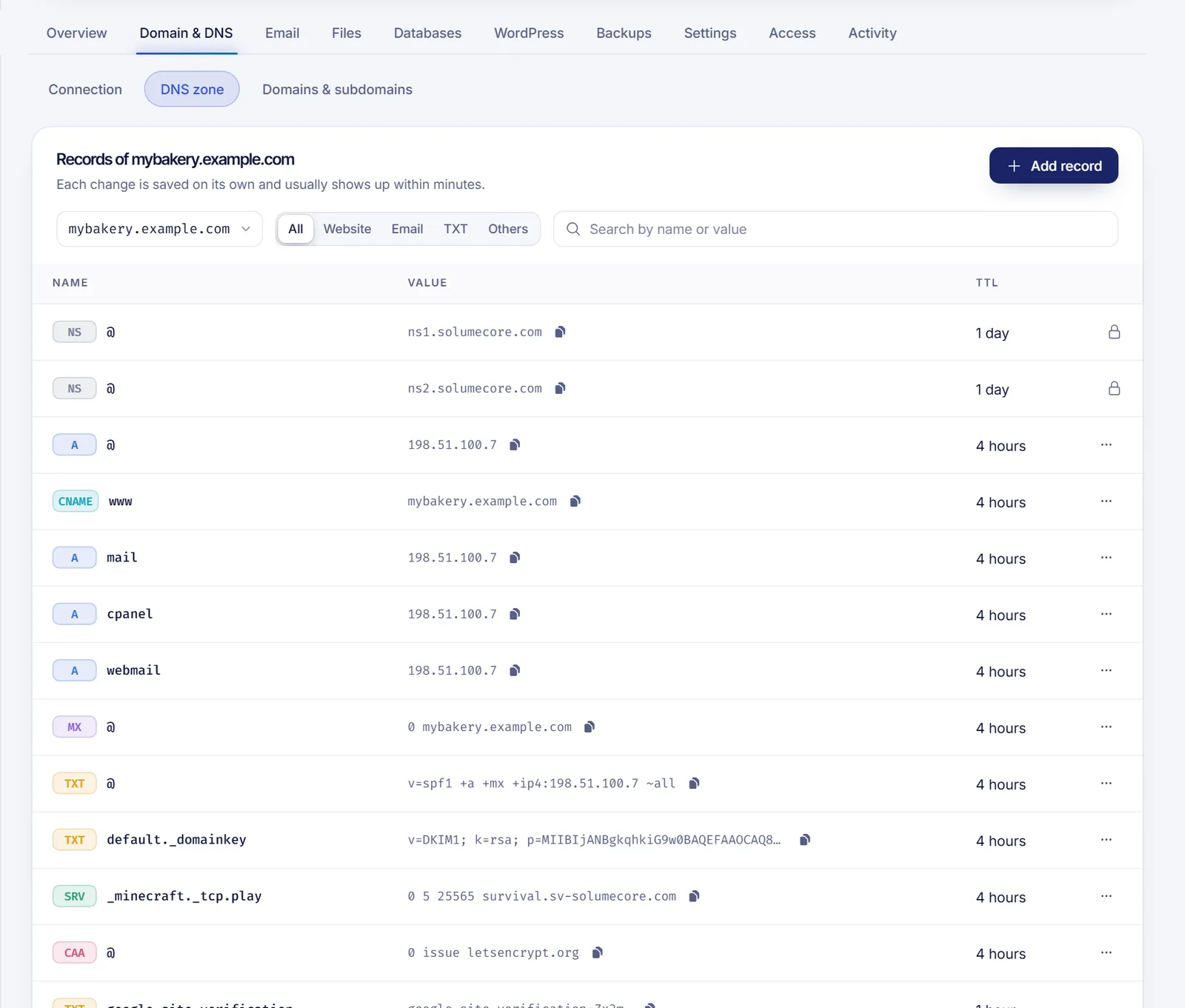
Some records appear with a lock and the label Managed by cPanel: the SOA record, the nameservers of the root of the domain and record types the editor does not handle. You cannot change them from here, because changing them could disconnect the whole domain.
Add a record
- Click Add record. The New DNS record window opens.
- Choose the Type. Each type describes what it does:
| Type | What it does |
|---|---|
A |
Points to an IPv4 address |
AAAA |
Points to an IPv6 address |
CNAME |
Alias of another name |
MX |
Receives email |
TXT |
Text and verifications |
SRV |
A service on a port |
CAA |
Who can issue SSL certificates |
- Type the Name. Use
@for the domain itself. Forshop.yourdomain.com, type onlyshop. The window shows the zone as a suffix. - Choose the Update time (TTL): 5 minutes, 1 hour, 4 hours or 1 day. A shorter TTL makes changes show up sooner. New records start at 4 hours.
- Fill in the fields for that type:
| Type | Fields |
|---|---|
A |
IPv4 address (the shared address of your hosting is prefilled) |
AAAA |
IPv6 address |
CNAME |
Points to |
MX |
Priority and Mail server |
TXT |
Text |
SRV |
Priority, Weight, Port and Points to |
CAA |
Flags, Tag (issue, issuewild or iodef) and Value |
- Click Save. A message confirms the record was saved and may take a few minutes to show up.
Examples of what you would typically add:
| Goal | Type | Name | Value |
|---|---|---|---|
Send shop.yourdomain.com to another server |
A |
shop |
203.0.113.20 |
| Verify the domain with a service | TXT |
@ |
The text the service gives you |
| Create an alias | CNAME |
blog |
target.example.net |
| Receive email at another provider | MX |
@ |
Priority and server your provider gives you |
Edit or delete a record
- Find the record and open the ... menu at the end of its row.
- Choose Edit to change it (the type cannot be changed, so delete and create a new one if you need another type), or Delete.
- For a deletion, confirm in Delete this record?. If something depends on it, such as your site, your email or a verification, it stops working.
Do not delete records you do not recognize. The A records of your domain, the MX and the SPF TXT record are what make your site and email work.
Use a quick template
Under the table, Quick templates applies the records that a service asks for, in one click:
- Google Workspace: moves your domain's email to Gmail by replacing the
MXand SPF records. - Zoho Mail: moves your email to Zoho Mail for the global region. If your Zoho account is in the EU or India, edit the
MXrecords afterwards. - Vercel: points your domain and
wwwto a Vercel project. Email and cPanel stay on your hosting.
- Click Apply on the template.
- Review Will be added and Will be removed. The template replaces only the records that would clash, such as the old email ones; nothing else in your zone is touched.
- Confirm with Apply.
When a template moves your email elsewhere, the dashboard also tells your hosting that mail now lives with another provider, so messages from your own mailboxes do not get stuck on the server.
Add an A record at another DNS provider
If your domain uses another DNS service, the steps are the same everywhere:
- Sign in to the provider where your nameservers point (your registrar, Cloudflare, etc.) and open the DNS records of the domain.
- Click Add record and choose
A. - In Name (or Host) type
@for the root domain or the subdomain, and in the value (or Points to) paste the IP address. - Leave the TTL on automatic or pick a low value, then save.
- If the provider offers a proxy (Cloudflare's orange cloud), set it to DNS only for records that point to SolumeCore.
Troubleshooting
The editor says this domain uses other nameservers
The records you edit here are not published until the domain uses the nameservers of your hosting. Either edit at your current DNS provider or change the nameservers.
"A CNAME can't go on the domain itself"
A CNAME on the root of a domain would break email. Use an A record for the root, and keep CNAME for names such as www or blog.
"An SRV record is named _service._protocol"
An SRV name must look like _minecraft._tcp. Write the name in that format and fill in priority, weight, port and target.
"Check the value" or "The TTL has to be between 60 seconds and one week"
The value does not match the type (for example text in an A record), or the TTL is out of range. Correct it and save again.
I saved the record but nothing changed
Give it a few minutes and check propagation. See How to check DNS propagation.
FAQ
How long does a DNS record change take?
Records usually show up in minutes, depending on the TTL of the old value. Nameserver changes can take up to 24 hours.
Can I edit DNS records for a game server or an app?
Not in a zone editor. The dashboard gives you the records to create at your own DNS provider.
What does the @ mean in the Name field?
@ is the domain itself. For a subdomain, write only the first part: shop for shop.yourdomain.com.
What TTL should I use?
Use a short TTL such as 5 minutes while you are testing or about to move something, and a longer one such as 4 hours or 1 day once everything is stable.
Related articles
- Connect a domain to a SolumeCore service
- Point a domain to your web hosting
- How to check DNS propagation
- Create an email account in cPanel
Need a hosting for your domain? See SolumeCore web hosting.