SolumeCore Domains Page: What It Does and Doesn't
Learn what the Domains page of your dashboard shows, how to read each domain's status, DNS and HTTPS, and what it does not do: it does not sell domains.
The Domains page of the SolumeCore dashboard lists every domain and subdomain connected to your services (web hosting, game servers, apps and maps) and shows where each one points, whether it has HTTPS and whether the world already sees it. It is a place to connect and check domains you already own: SolumeCore does not sell, register or transfer domains, so you keep yours at your registrar.
What you see on the Domains page
Open Domains in the left menu of the dashboard. The page is called Your domains.
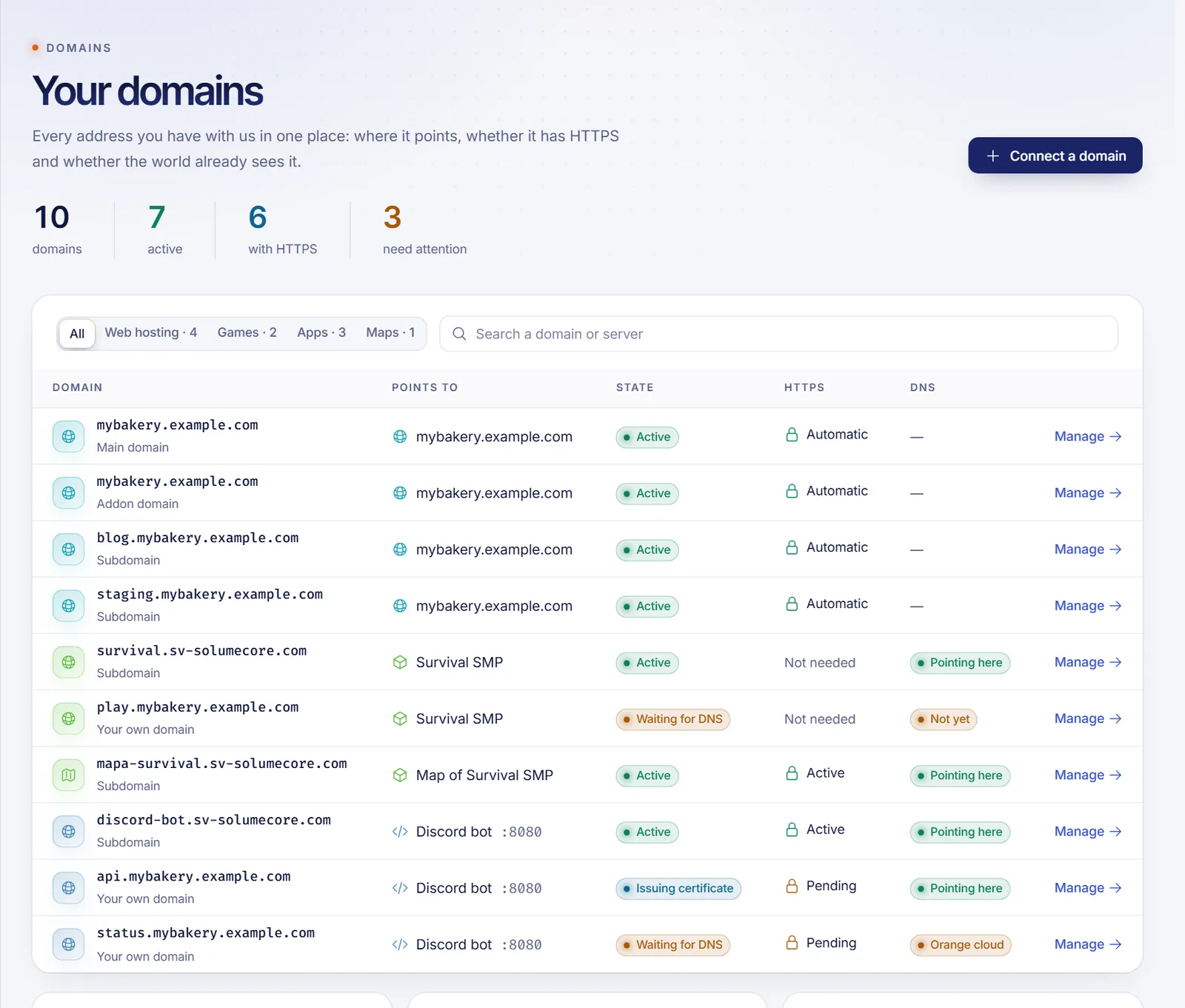
- Counters at the top: how many domains you have, how many are active, how many have HTTPS and how many need attention. Click the last one to show only the domains with a problem.
- Filters: All, Web hosting, Games, Apps and Maps. A filter only appears if you have domains of that kind.
- Search: type a domain or the name of a server in Search a domain or server.
- The table, with these columns:
| Column | What it tells you |
|---|---|
| Domain | The name, and what it is: Main domain, Temporary address, Addon domain, Subdomain, Alias or Your own domain. |
| Points to | The service it leads to (a game server, an app, a hosting) and the port when it applies. |
| State | Whether it is working. See the table below. |
| HTTPS | The state of the certificate: Active, Pending, Automatic or Not needed. |
| DNS | Pointing here, Not yet, or Orange cloud when a Cloudflare proxy is in the way. |
The states
| State | What it means |
|---|---|
| Active | The domain points where it should and answers. |
| Waiting for DNS | We are waiting for the domain's DNS to point to your service. Open the service to see which records to create. |
| Issuing certificate | The DNS is right and the HTTPS certificate is being issued. It usually takes about a minute. |
| Paused | The service is not active or the port was released. |
| Error | Something failed while publishing it. Open the service to retry, or open a ticket. |
| Pending | It is being published. It usually takes a few seconds. |
Websites and apps get their HTTPS certificate automatically and it renews by itself. Game servers do not use HTTPS, so their certificate column says Not needed.
Open a domain for details
Click any row. A side panel shows its state, certificate, the service it points to, the date it has been Active since, a short explanation of the state and the live propagation check. For websites, apps and maps, the arrow at the top opens the domain in a new tab. The button at the bottom, Manage in followed by the service name, takes you to the place where that domain is configured. The Manage link in the table does the same.
If you see a warning about the orange cloud, the domain goes through Cloudflare's proxy. Switch the record to DNS only so the certificate can be issued. For the full check, see How to check DNS propagation.
Connect a domain
Click Connect a domain. The dashboard asks where you want to use it and takes you to the right place:
- Web hosting: your website and email on your domain.
- Apps: your app or bot on your domain, with HTTPS.
- Game servers: players join with your domain.
VPS and VDS servers do not appear in this list, because they do not have a domain flow in the dashboard: you point a domain to them with an A record at your DNS provider. The step-by-step is in Connect a domain to a SolumeCore service.
If you have no service where a domain can be connected, the button stays disabled and the empty list offers a link to see your servers.
What the Domains page does not do
- It does not sell, register, transfer or renew domains. Buy your domain at any registrar and keep renewing it there.
- It does not replace your registrar: nameservers and ownership stay where you bought the domain.
- It does not edit DNS records. The zone editor is part of each web hosting, as explained in Edit DNS records from the dashboard. For game servers and apps, the dashboard gives you the records to create at your own DNS provider.
Free addresses such as name.sv-solumecore.com for game servers, or a free subdomain for apps, depend on your service and on what is enabled in your account. If you see them in the dashboard, you can share them right away without owning a domain.
Troubleshooting
A domain I expect is missing from the list
If one of your web hostings could not be read at that moment, a notice says the list may be missing some domains. Reload the page after a moment. Domains of cancelled services are not listed.
A domain stays in "Waiting for DNS"
The DNS records are not visible yet or do not match. Open the domain, check the records in the service and run the propagation check. It can take up to 24 hours.
The page failed to load
Click Retry. If it keeps failing, open a ticket from the dashboard.
FAQ
Can I buy a domain from SolumeCore?
No. SolumeCore does not sell or register domains. Buy the domain at any registrar, then connect it to your hosting, game server or app.
Do I need my own domain to use my service?
No. Your service works without one: a web hosting starts on a temporary address and game servers are reachable by their IP address and port. A domain makes the address easier to remember.
Is HTTPS included for my domain?
For websites and apps, yes: the certificate is issued automatically once the domain points correctly and it renews by itself.
Can I connect the same domain to more than one service?
Each domain or subdomain can lead to a single service. The usual approach is to use subdomains, for example play.yourbrand.com for the game and www.yourbrand.com for the website.
Related articles
- Connect a domain to a SolumeCore service
- How to check DNS propagation
- Edit DNS records from the dashboard
- Set up your domain automatically with Domain Connect
Want a website on your own domain? Take a look at SolumeCore web hosting.