Invoice lifecycle and renewals: how billing works
When your renewal invoice is created, what each status means, how failed charges are retried and how to view, pay and download invoices in the panel.
SolumeCore bills every service by cycle (monthly, every 3 months, every 6 months or yearly). A few days before a service renews, the system creates a renewal invoice. You can pay it by hand, or let a saved card or your account credit pay it for you. If nobody pays, a fixed sequence of reminders, retries, suspension and cancellation follows.
This page explains the life of an invoice from creation to payment, the default dates of that sequence, and where to see, pay and download your invoices in the client panel.
Important: the timings below are the defaults. SolumeCore can change them, so the dates in your invoice, your emails and the panel are the ones that apply to you. For the full picture of what happens when an invoice stays unpaid, read how service suspension for non-payment works.
Billing cycles
Each service has a billing cycle chosen at purchase. The panel shows it in the Renewals tab as monthly, every 3 months, every 6 months or yearly. Which cycles a plan offers depends on the plan.
- A longer cycle costs less per month than paying month by month, because the cycle discount is applied to the price of the whole period.
- The next renewal date is the previous one plus one cycle, counted in calendar months (or one year for yearly).
- If you pay the renewal on time, the service keeps running without interruption and the date moves forward one cycle.
If you want all your services to renew on the same day and arrive in a single invoice, check whether the Single billing date option is available in your panel. It is not enabled for everyone.
The life of an invoice
An invoice is created in one of two ways: when you buy something (a new service, an upgrade, a credit top-up) or when a service is about to renew.
Invoice statuses
The panel shows one of these statuses in Billing → Invoices & payments:
| Status | What it means |
|---|---|
| Pending | Issued and waiting for payment. Its due date has not passed yet. |
| Paid | Fully paid. Services keep running, or come back if they were suspended for non-payment. |
| Overdue | The due date passed, or an automatic charge failed. It can still be paid. |
| In dispute | The payment is being questioned with the card issuer. See chargebacks and disputes. |
| Cancelled | It will not be charged: it was cancelled or it expired. |
Some invoices cancel themselves if nobody pays them. By default, an upgrade invoice expires after 48 hours and a credit top-up invoice after 7 days. Neither of them counts as a debt.
When is the renewal invoice created?
By default the renewal invoice is created 3 days before the renewal date, and its due date is the renewal date. That gives you a few days to pay before anything changes. You receive an email with the amount and the due date, and the invoice appears in the panel.
Two details worth knowing:
- Only one open invoice exists per service. If you have an unpaid renewal invoice, the system does not create a second one on top of it.
- If you use a single billing date, renewals of the same day, currency and payment mode are grouped in one invoice with a line per service.
What happens around the renewal date
The billing run happens once a day, and each action below takes place on that daily run. This is the default sequence, with day 0 as the renewal and due date:
| When | What happens |
|---|---|
| 3 days before | The renewal invoice is created and you get an email. If a saved card pays your renewals automatically, you also get a notice with the amount, the charge date and the card. The charge is scheduled a couple of days later and never less than one day before the due date. |
| Day 0 | If the invoice is still unpaid, the service is suspended and you get an email. |
| After a failed charge | Retries wait 24 hours, then 72 hours, then 168 hours (1, 3 and 7 days). A card declined for lack of funds waits at least 72 hours. |
| 15 days after suspension | If the invoice is still unpaid, the service is cancelled. |
Retries and suspension are independent. A suspended service whose invoice gets paid later, by you or by a successful retry, is reactivated automatically as long as it was suspended for non-payment. If you have no saved card, each "retry" is simply another reminder email that the invoice is overdue.
What is kept or deleted after cancellation depends on the product and is covered in the suspension guide. The full list of default timings is in default timelines.
See, pay and download invoices in the panel
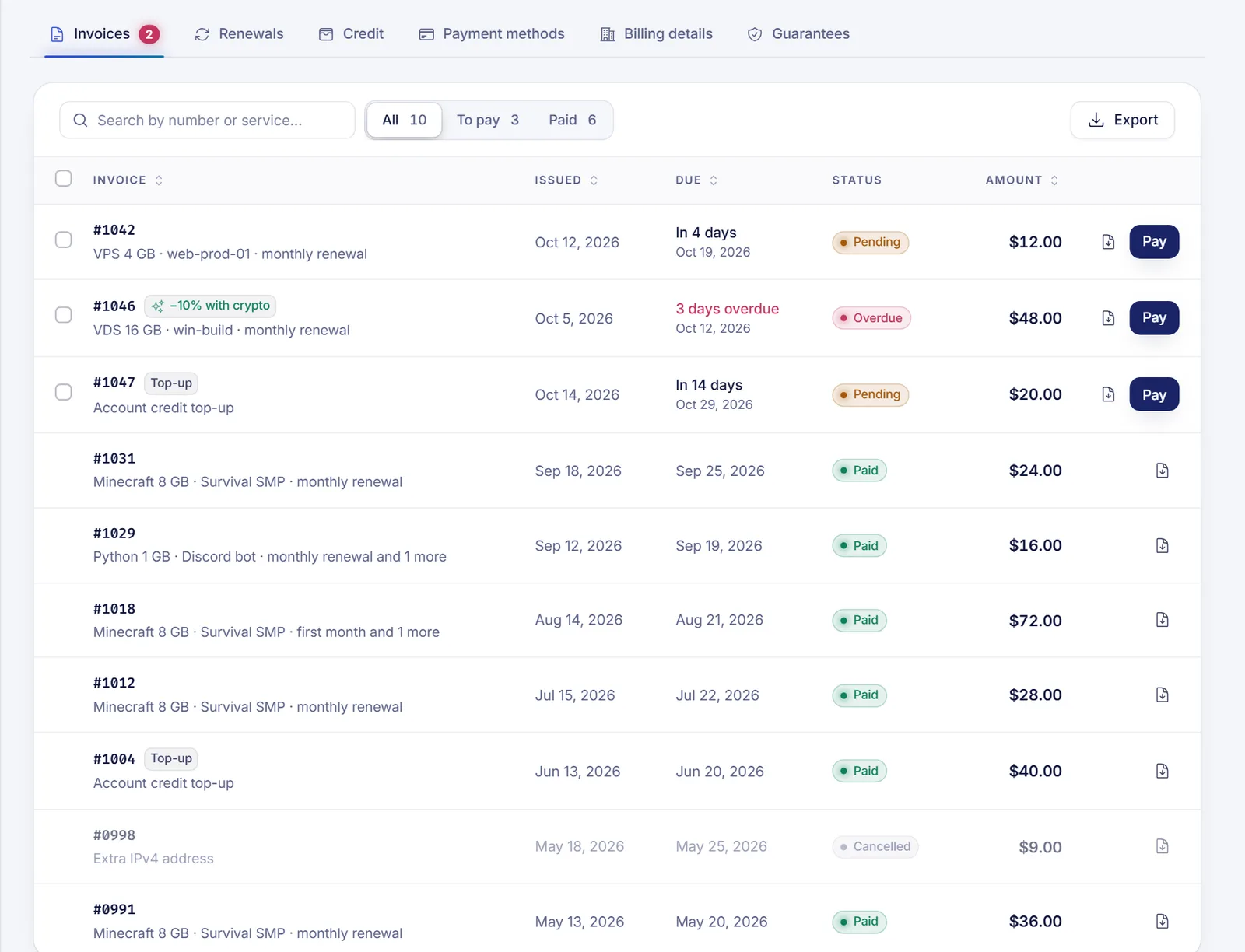
Sign in to the client panel at dashboard.solumecore.com and open Billing → Invoices & payments. The page has five tabs: Invoices, Renewals, Credit, Payment methods and Billing details.
Find an invoice
- Use the search box to look for an invoice by number or by service name.
- Filter by All, To pay or Paid.
- Each row shows the issue date, the due date (or how many days overdue it is), the status and the amount.
- Open an invoice to see every line, the subtotal, taxes and total, the payments applied to it and the services it pays for.
Pay an invoice
Click Pay on a row, or open the invoice and use its pay button. Then choose a method:
- Card: your card details go straight to the payment provider.
- PayPal.
- Account credit, only if your credit covers the whole invoice.
- Crypto, only if it is enabled. See crypto payments.
Some invoices show a discount when you pay with a specific method, and the total updates when you pick it. Methods, availability and rules are described in payment methods, and coupon rules in coupons and discounts.
If your account has the option enabled, you can tick several invoices and use Pay selected to pay them in one go.
Download a PDF or export your invoices
- Download PDF, on a row or inside an invoice, opens the PDF. It includes the name, address and tax ID from your default billing address. A paid invoice keeps the details it had at the moment it was paid.
- Export downloads a spreadsheet (CSV, one row per invoice) or a ZIP with each invoice as a PDF, up to 100 PDFs per ZIP. You can filter by status and by dates.
- Set your legal name, address and tax ID in the Billing details tab before you pay, if your accountant needs them on the invoice.
Choose how each renewal is paid
In the Renewals tab you see every service with its next renewal date, amount and billing cycle. Each service has an auto-renew setting:
| Option | Behavior |
|---|---|
| With my card | The renewal is charged to your default saved card. |
| Credit, then card | Credit pays the invoice if it covers it in full; otherwise the card is used. |
| Credit only | Only your account credit is used. |
| Off (I'll pay by hand) | Nothing is charged; you pay each invoice yourself. |
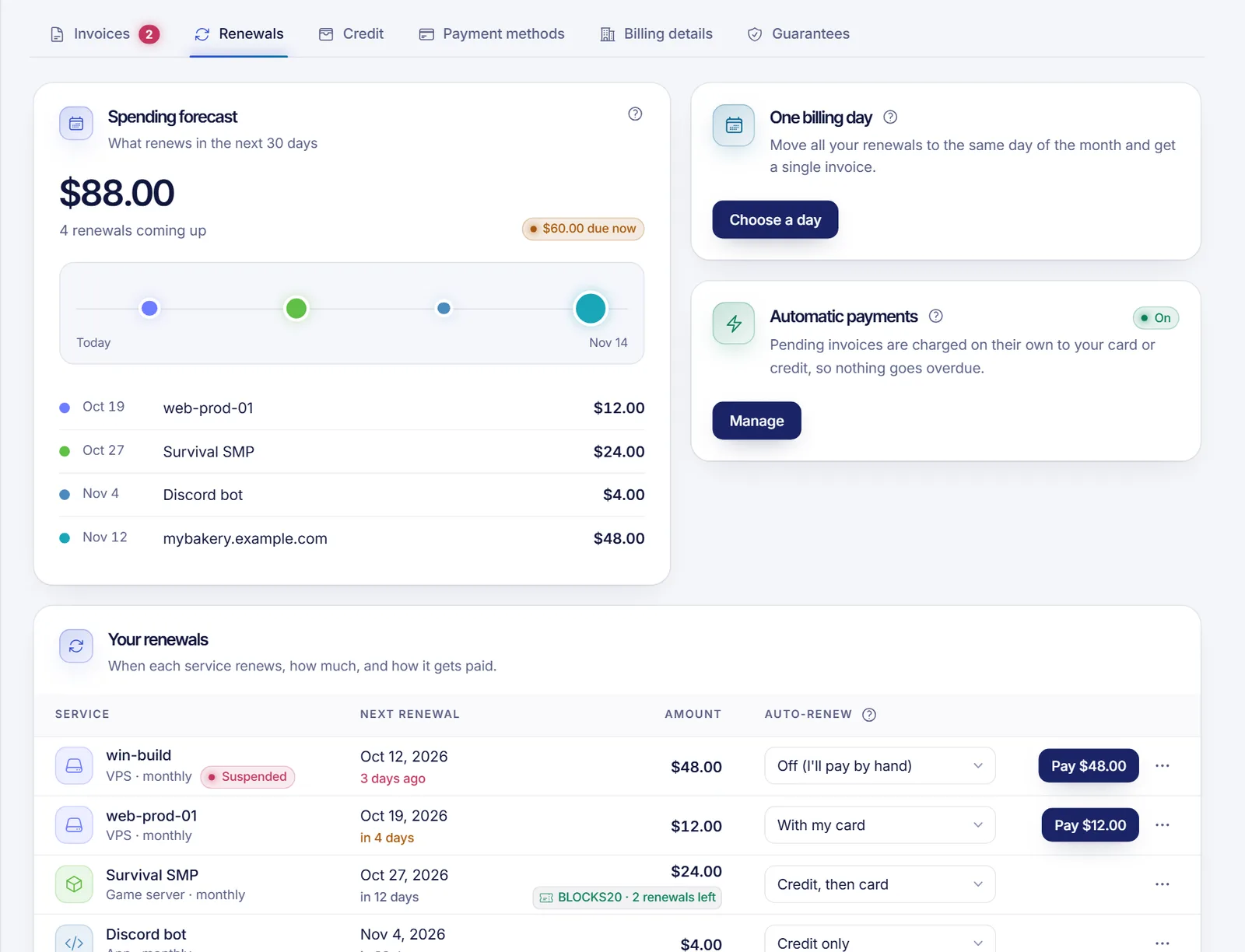
The details of saved cards, the authorization they need and the credit balance are explained in account credit and automatic billing.
Cancel a renewal
To stop paying for a service, open the service, go to its settings and use the cancel option. For some services you choose between cancelling at the end of the period and cancelling now, and you can leave a reason. Cancelling now is immediate and the rest of the paid period is not returned: all payments are final and non-refundable (see the no refunds policy).
When you schedule a cancellation for the end of the period, the Renewals tab marks the service as Cancels at the end of the term and our team is notified. Do not rely on that alone to stop billing: check the Invoices tab around your renewal date, set auto-renew to Off (I'll pay by hand), and if an invoice appears for a service you cancelled, open a ticket under Billing & payments. An invoice that nobody pays eventually leads to suspension and cancellation.
Related documents
- How service suspension for non-payment works
- Account credit and automatic billing
- Payment methods
- No refunds, chargebacks and billing errors
- A tour of the client panel
FAQ
When is my renewal invoice created?
By default, 3 days before the renewal date, and it is due on the renewal date. You get an email and the invoice shows up in Billing → Invoices & payments. SolumeCore can change that lead time.
Can I pay a renewal invoice early?
Yes. As soon as the invoice exists you can pay it from the panel. Paying before the due date avoids any suspension and moves the next renewal forward one cycle.
What happens if I miss the due date?
By default the service is suspended on the next daily billing run after the due date, and the invoice shows as Overdue. You can still pay it: when the payment is confirmed, a service suspended for non-payment comes back on its own. If the invoice stays unpaid, the service is cancelled 15 days after suspension.
Why was I charged automatically?
Because the service is set to renew with your card (or with credit, then card) and a card was saved. You receive a notice before each automatic card charge. You can switch a service to Off (I'll pay by hand) in the Renewals tab.
How do I download an invoice as a PDF?
Open Billing → Invoices & payments and click Download PDF on the invoice row, or open the invoice and click the same button. To download many at once, use Export and choose the ZIP of PDFs.
Can I change the name or tax ID on an invoice?
Edit your default billing address in the Billing details tab before paying. A paid invoice keeps the details it had when it was paid, so open a ticket if one needs correcting.