Client panel tour: menu, servers and live alerts
A tour of the SolumeCore client panel: side menu, server list, notification bell, light and dark theme, language, and live alerts with sound.
The SolumeCore client panel is where you run everything you buy: your servers, invoices, tickets, domains, notifications and account settings. It lives at dashboard.solumecore.com. The layout is always the same, wherever you are: a side menu that says where you are in your account, a top bar with search, balance, help and the notification bell, and, inside a server, tabs that say where you are in that server.
This tour goes through each part with the exact English labels, then covers the notification bell, the light and dark theme, the language, and the live alerts that can play a sound or show a desktop notification. If you have not placed an order yet, read create an account and place your first order first.
The side menu
The menu is the same on every page. Some entries only appear when they apply to your account.
| Group | Entries |
|---|---|
| (top) | Home |
| Servers | All servers, Games, Apps & bots, VPS & VDS, Web hosting, Bring from another host, Firewall |
| Domains | Domains |
| Billing | Invoices & payments, Guarantees, Referrals |
| Support | Tickets, Service status, Security cases, Help center |
| Account | Profile & security, Notifications, Account activity, Integrations, API & webhooks, AI & copilot, Discord bot |
- Games, Apps & bots, VPS & VDS and Web hosting show up only if you own that type of service. All servers is always there.
- Guarantees appears only when the team has turned on guarantee features for the platform, so most accounts will not see it.
- Bring from another host opens the migration assistant, to move a server or site you already have elsewhere.
- Firewall is where you manage the DDoS protection rules for your services.
- Help center opens the public help articles.
- The New server button in the menu takes you to the plans on the website.
On a phone, a bottom bar replaces most of this with Home, Servers, Billing, Support and More.
The top bar
From left to right you find:
- Your servers: a switcher to jump straight to any server. Type to filter with Jump to a server.... Servers that are being set up, suspended, paused or in error show a status label.
- Search or run a command...: the command palette. Open it with
Ctrl+K(Cmd+Kon Mac) or/. It finds servers, invoices to pay and open tickets, and runs quick actions such as ordering a new server, opening a ticket, restarting a server, opening its console, files or backups, paying an invoice, or switching between light and dark mode. - Credit: your account credit. You top it up from Billing.
- Cart: only if the cart is enabled on the platform.
- Help: guides that match the page you are on, plus the keyboard shortcuts.
- Notifications: the bell, explained below.
- Your account menu, with Profile & security, Notifications, the appearance and language options, Back to the website and Sign out.
Keyboard shortcuts
Press ? anywhere to see them. The main ones: Ctrl+K or / for search, ? for help, g followed by a letter to jump (g i Home, g s Servers, g f Billing, g t Tickets, g d Domains, g c your account), and the backtick key to open or close the console inside a server.
Home
The Home page greets you and says in one line whether everything is running normally or some services have issues. It shows counters (Active services, vCPU, RAM and Invoices to pay), Your servers (star the ones you use most and drag to reorder them), a Billing card with what you owe and what renews next, a Support card with your open tickets, and your DDoS protection status. A Getting started card lists five steps until you finish them or hide it: verify your email, turn on two-step verification, deploy your first server, make your first backup, and connect Discord to get notices.
The server list
Open All servers to see everything you own. Click any server to manage it.
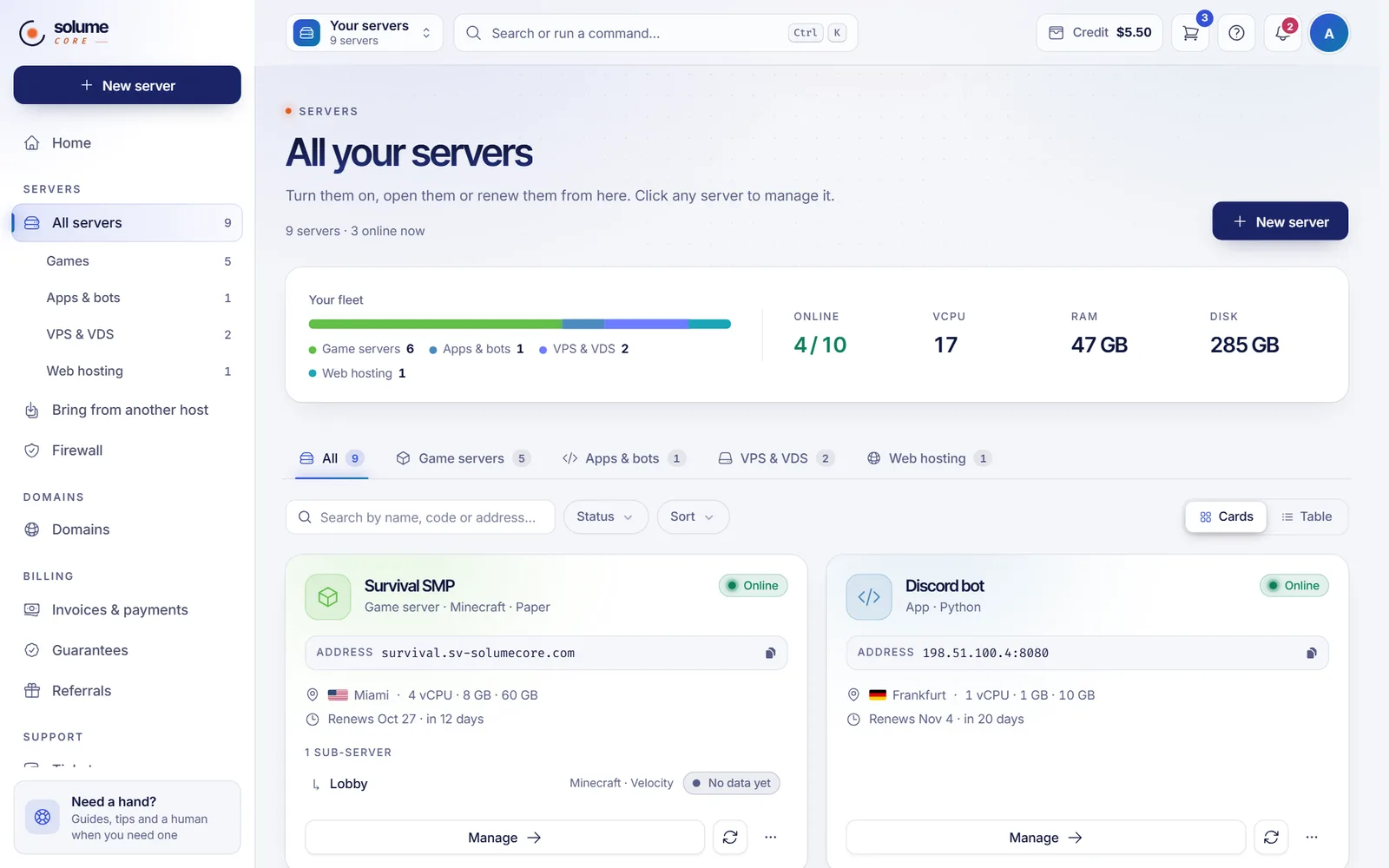
- Tabs by type (All, Game servers, Apps & bots, VPS & VDS, Web hosting) appear when you have more than one type.
- Search by name, code or address... filters the list, Status filters by Active, Being set up, Suspended or Cancelled, and Sort orders by Newest first, Name or Next renewal.
- Switch between Cards and Table views; the choice is remembered in your browser.
- Each server shows a live state: Online, Starting, Down, Off, Unreachable or No data yet, its address (with a copy button), its location and when it renews.
- Start, Restart and Stop work straight from the list, with a confirmation for restart and stop. When a renewal is due, a Pay renewal button appears.
- Servers other people shared with you are marked Shared with you.
- If you paid for a plan in a location that is not open yet, a notice says it is reserved and will switch on by itself.
Inside a server
Each server has a header with its name, address, power buttons and a Connect button that shows everything you need to reach it (SFTP details for game servers and apps, the SSH command and IP for a VPS or VDS, cPanel and mail settings for web hosting). Below it, tabs depend on the type:
| Type | Typical tabs |
|---|---|
| Game server | Overview, Console, Files, World, Plugins & mods, Players, Backups, Network & domain, Automation, Settings |
| App or bot | Overview, Console, Code, Files, Backups, Network & domain, Automation, Settings |
| VPS and VDS | Overview, Console, Performance, Backups, Network & domain, Operating system, Settings, Activity |
| Web hosting | Overview, Domain & DNS, Email, Files, Databases, Backups, Settings, Activity |
Tabs vary with the game, the plan and your permissions, so you may see fewer or a few more. The console also slides up from the bottom of any tab. For deeper detail see the game server panel guide.
The notification bell
The bell sits in the top bar with a red counter for unread items (shown as 9+ above nine). It refreshes by itself every few seconds, so a support reply shows up without reloading.
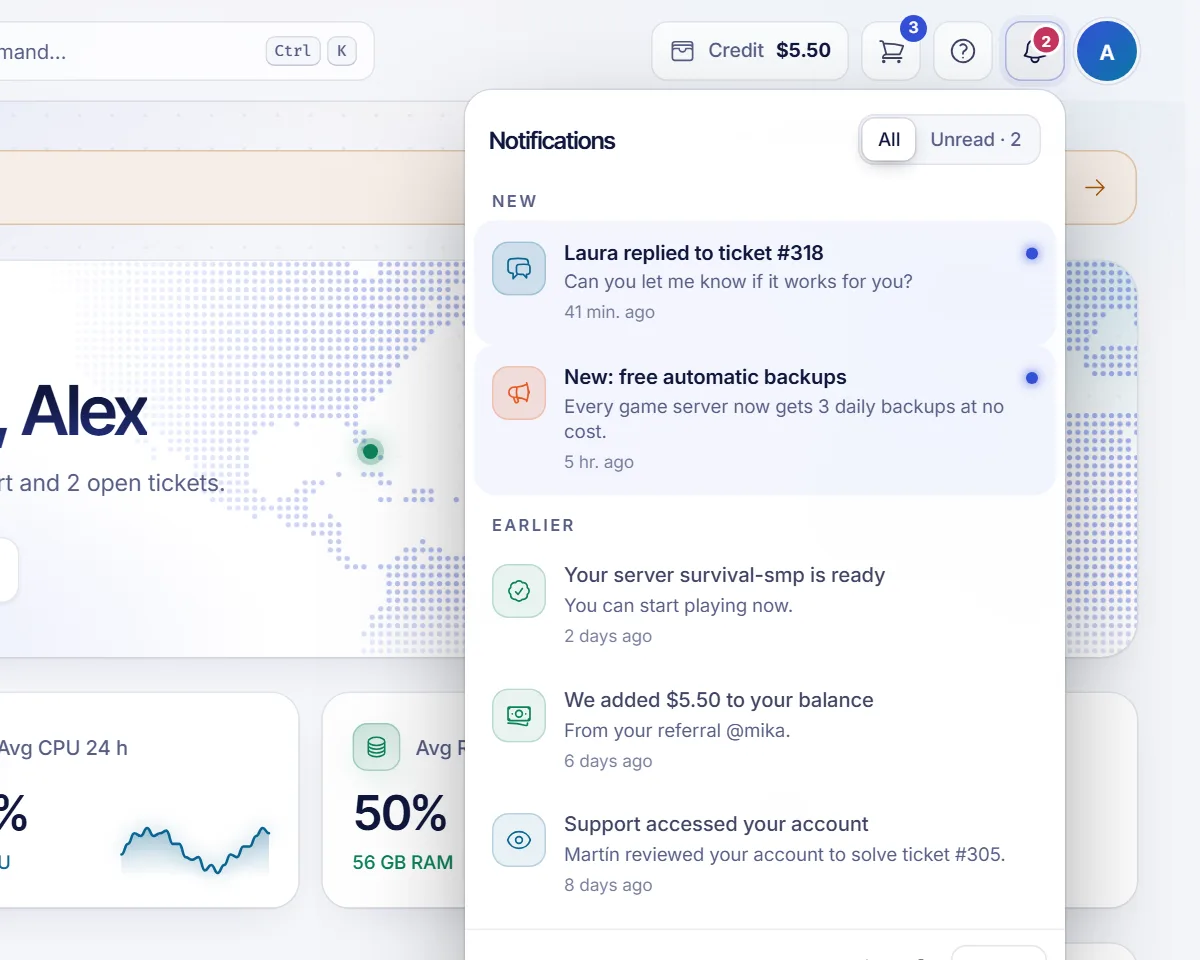
- Switch between All and Unread. Items are grouped as New and Earlier.
- Click an item to mark it read and open the related page.
- Mark all as read clears the counter.
- The speaker icon mutes or unmutes alert sounds for this browser, the gear opens Notification settings, and See all opens the full page.
The full Notifications page has three tabs: Inbox (search, filter and delete), Alerts (rules that watch your servers, such as Server down, High CPU, High RAM, Disk almost full, Invoice due soon and HTTPS certificate expiring), and What and where. In the last one you choose, per kind of notice (Alerts, Servers, Backups, Billing, Security, Support, Referrals, Announcements, Other), which channels deliver it: Panel (always on), Email, Discord, and Telegram when it is available.
Light, dark and language
Open your account menu in the top bar.
- Appearance: Light, Dark or Match my device. The choice is remembered in this browser.
- Language: English or Español. This is saved to your account, so it follows you across devices.
Live alerts: sound and desktop notifications
Live alerts let the panel tell you something new arrived even when you are in another window. You set them up under Notifications, tab What and where, in the Live alerts card. They are saved only in this browser, so each computer or phone has its own settings.
| Setting | What it does | Default |
|---|---|---|
| Play a sound | A short tone when a notification arrives. Choose a Volume and a Tone: Soft, Bright or Bell. Tickets get a rising melody and urgent alerts a more insistent one | On |
| Desktop notifications | A pop-up from your browser, only while the tab is in the background or minimized. Clicking it takes you to the notification | Off |
| What to alert | Tickets and messages, Payments, Purchases and services, Urgent alerts, Everything else. Only the ticked types make a sound or a pop-up; everything still shows in the bell | All on except Everything else |
You can test both with Test sound, Test urgent alert and Send a test notification. If several notifications arrive together, you hear one sound and see one summary, such as "5 new notifications", instead of five pop-ups.
Important: The browser decides whether sounds and pop-ups are allowed. If you see "Your browser is blocking alert sounds", click anywhere on the page and press Enable sound. For desktop notifications, allow Notifications for the site (lock icon next to the address bar) and reload; on Windows, also check that your browser is allowed in system notifications and that Focus assist is not hiding them.
Related documents
- What is SolumeCore?
- Create an account and place your first order
- Service status and incidents
- Game server panel
- Help center
FAQ
How do I change the panel language?
Open your account menu in the top bar and pick English or Español under Language. It is saved to your account.
How do I turn on dark mode?
In the account menu, under Appearance, choose Dark, or Match my device to follow your system. You can also use the command palette and pick the switch to light or dark mode.
Why don't I see Games or VPS & VDS in the menu?
Those entries appear only when you own that type of service. Order one from the plans on the website and it shows up. All servers is always available.
Why am I not getting desktop notifications?
Check three things: that you enabled Desktop notifications in the Live alerts card, that your browser allows notifications for the site, and that the tab is in the background, because the pop-up only appears then. Use Send a test notification to check.
How do I mute the sound?
Click the speaker icon in the bell dropdown, or turn off Play a sound in the Live alerts card. This applies only to the browser you are using.
Where do I find my invoices?
Under Invoices & payments in the Billing group, and from the Billing card on Home.