API Keys: Create, Authorize IPs and Revoke
How to create a SolumeCore API key, save the secret, get your IP addresses authorized, understand rate limits, and revoke or delete the key.
An API key lets your own scripts, tools or reseller panel manage your SolumeCore VPS and VDS services without signing in. You create it in the client panel under Account → API & webhooks, copy the secret once, ask support to authorize the IP address your code runs from, and then call the API with an Authorization: Bearer header. This guide covers the key itself: how to create, name, review, revoke and delete it, what it can touch and how to keep it safe. The endpoints are documented in the Client API reference.
Two things catch almost everyone the first time. The secret is shown only once, and a brand-new key rejects every request until SolumeCore staff have authorized at least one IP address for it. That is intentional, not a bug.
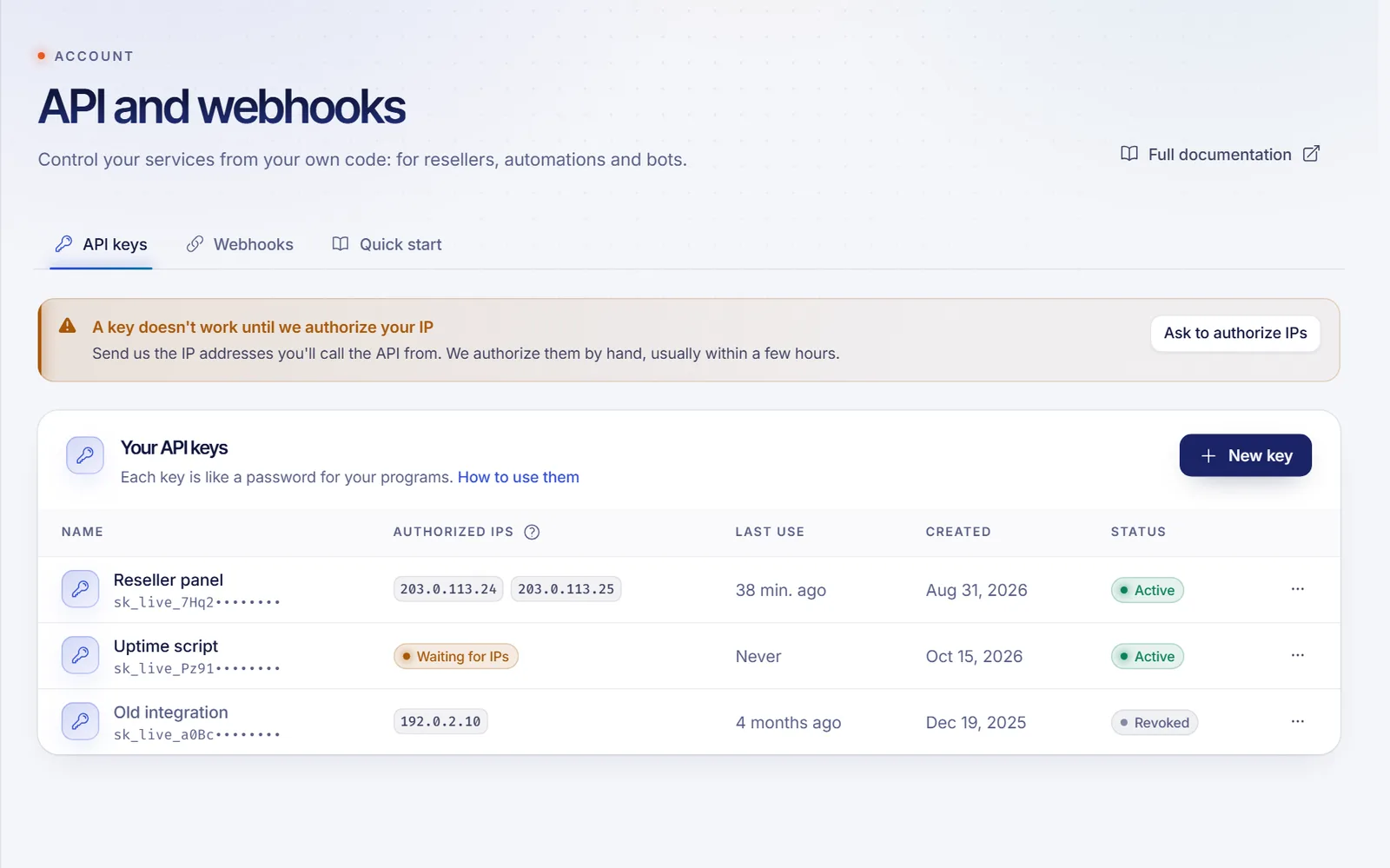
Create a key step by step
- Open the client panel (dashboard.solumecore.com) and go to Account → API & webhooks. The page has three tabs: API keys, Webhooks and Quick start.
- In API keys, click New key.
- Type a Name (up to 60 characters). Use something that tells you who or what will use the key, such as the program or the customer, for example "Reseller panel".
- Click Create key. Because a key outlives your session, the panel asks you to confirm it is you with your password, a two-step code, a passkey or a code sent by email. Creating a key from a support session is not allowed.
- A window shows the Secret key. Copy it into your password manager or secret store, tick I saved it and continue. The window will not close until you tick the box.
- Click Ask to authorize IPs. The panel opens a new ticket with the subject and body already written; add the IP addresses your code will call from and send it.
SolumeCore notifies you in the panel, and by email when email notices are available, whenever a credential like this is created, so a key made by someone who borrowed your session does not go unnoticed.
What the secret looks like
Every key starts with sk_live_ followed by 43 random characters. The panel never shows the whole thing again: the list shows only the first 16 characters as a prefix (for example sk_live_ab12cd34••••••••) so you can tell keys apart. SolumeCore keeps only a one-way hash of the secret, so nobody, including support, can read it back. If you lose it, revoke the key and create another one.
# Example only: this is not a real key
export SOLUME_API_KEY="sk_live_xxxxxxxxxxxxxxxxxxxxxxxxxxxxxxxxxxxxxxxxxxx"
Authorize your IP addresses
A key only works from IP addresses that staff have linked to that specific key. Until then the key shows the badge Waiting for IPs, and every request returns 403.
- The check is an exact match on the public IP address that SolumeCore sees on the request. Send single addresses (IPv4 or IPv6); there is no range or wildcard syntax.
- Ask for every address you need: your servers, your office, your CI runner. If your outbound IP changes, ask again.
- Mention the key name in the ticket. The pre-filled text does this for you.
- Staff add the addresses by hand. Once linked, they appear in the Authorized IPs column.
- Only staff can add or remove addresses. You cannot edit the list yourself.
If your code runs behind a provider that rotates outbound addresses (serverless platforms, some home connections), route the calls through a machine with a fixed public IP.
Read the keys list
| Column | What it tells you |
|---|---|
| Name | The name you chose, with the key prefix underneath |
| Authorized IPs | The addresses staff have linked, or Waiting for IPs |
| Last use | When the key last authenticated, or Never |
| Created | Creation date |
| Status | Active or Revoked |
The panel shows you the last use, not a per-request history. Use it to spot a key nobody calls any more, or one that was used when you did not expect it.
Revoke or delete a key
Open the More options menu on the row.
- Revoke stops the key immediately. Any program that still uses it starts getting errors. You cannot reactivate a revoked key yourself; create a new one.
- Delete appears for revoked keys. You must type the key name to confirm, and the key disappears from the list for good.
- Revoke first if you suspect a leak, then rotate: create a new key, update your tools, ask for the IPs on the new key, and delete the old one when you are done.
What a key can do
A key acts for the account that created it, on that account's own services only. It cannot reach another customer's services, or servers that someone shared with you as a subuser.
| Can do with a key | Cannot do with a key |
|---|---|
| List your services and read the details of one | Order, renew or cancel services |
| Start, stop or restart a VPS or VDS | Read invoices or change billing |
| Read and change firewall rules for a service | Open files, consoles or tickets |
| Use it from the IP addresses authorized for that key | Use it from any other address |
A key has no read-only mode: every key can call every endpoint of the API. If you need to separate duties, create one key per tool, so you can revoke one without touching the rest. The full list of endpoints, request bodies and responses is in the Client API reference.
Rate limits
Each key has its own request budget, counted separately per key, per source IP and per group of actions (reading, power control and firewall changes). By default the budgets per 60 seconds are 300 requests for reading, 20 for power actions and 60 for firewall changes. SolumeCore can change these defaults and set different limits for a specific key, so treat them as defaults, not guarantees.
Authenticated responses carry x-ratelimit-limit and x-ratelimit-remaining. When you go over, you get 429 with a retry-after header in seconds; wait that long before trying again. If a legitimate integration needs more room, open a ticket.
Test your key
curl https://api.solumecore.com/v1/services \
-H "Authorization: Bearer $SOLUME_API_KEY"| Status | Usual cause |
|---|---|
200 |
Works. You get the list of your services |
401 |
Missing Authorization header, or the key is wrong, revoked or deleted |
403 |
The IP is not authorized for this key, your account is suspended or closed, or your IP is blocked |
429 |
You went over the limit; wait for retry-after |
Error messages are returned in Spanish for now, as JSON with an error field. Rely on the status code, not on the text.
Good practices
- Store the key in an environment variable or a secret manager. Never put it in a web page, a mobile app or a public repository.
- Use one key per tool or customer, named clearly, so the list tells you what to revoke.
- Authorize only the addresses you really use, and ask staff to remove an address when you retire the machine behind it.
- Rotate keys now and then and revoke any key that shows Never or that nobody remembers creating.
- Keep your account itself locked down; a key is as safe as the account that can create it. See Account security.
- Want a message when a key is created or revoked? The
cuenta.seguridadevent reports it; see Webhooks and account events.
Related documents
- Client API reference
- Webhooks and account events
- Which SolumeCore API to use
- Account security
- VPS vs VDS
- Help center
FAQ
Where do I create an API key in SolumeCore?
In the client panel, open Account → API & webhooks, stay on the API keys tab and click New key. The secret is shown once, right after you create it.
Why does my new API key return 403?
Because no IP address has been authorized for it yet, or you are calling from a different one. Use Ask to authorize IPs, send the ticket with the exact public IP of your server and wait for staff to link it.
I lost my API key. Can you show it again?
No. Only a hash is stored, so nobody can read the secret. Revoke the key, create a new one and update your tools.
Can I limit a key to read-only access?
No. A key can call every endpoint of the API for your own services. Create separate keys per tool so you can revoke each one independently.
Does an API key work for game servers, web hosting or billing?
The API is built for VPS and VDS services. Billing, files, consoles and tickets are not reachable with a key. For game servers and automation with an AI assistant, see AI and MCP API.
How do I see what my key did?
The keys list shows the last use. Your account activity log also records when keys are created. A detailed per-request log is kept by SolumeCore staff, not shown in the panel.