Upload a Minecraft World via SFTP: Common Mistakes
How to upload a Minecraft world to your server over SFTP without breaking it: the right folder, level-name, version, permissions and the usual mistakes.
To upload a Minecraft world over SFTP: stop the server, connect with an SFTP client such as FileZilla or WinSCP, delete or rename the old world folder, upload your world so that level.dat sits directly inside the folder named in level-name, and start the server. Most failed uploads come from the same handful of mistakes, listed below.
What you need
- The world folder you want to upload (or a
.zipof it). - An SFTP client: FileZilla, WinSCP, Cyberduck, or the
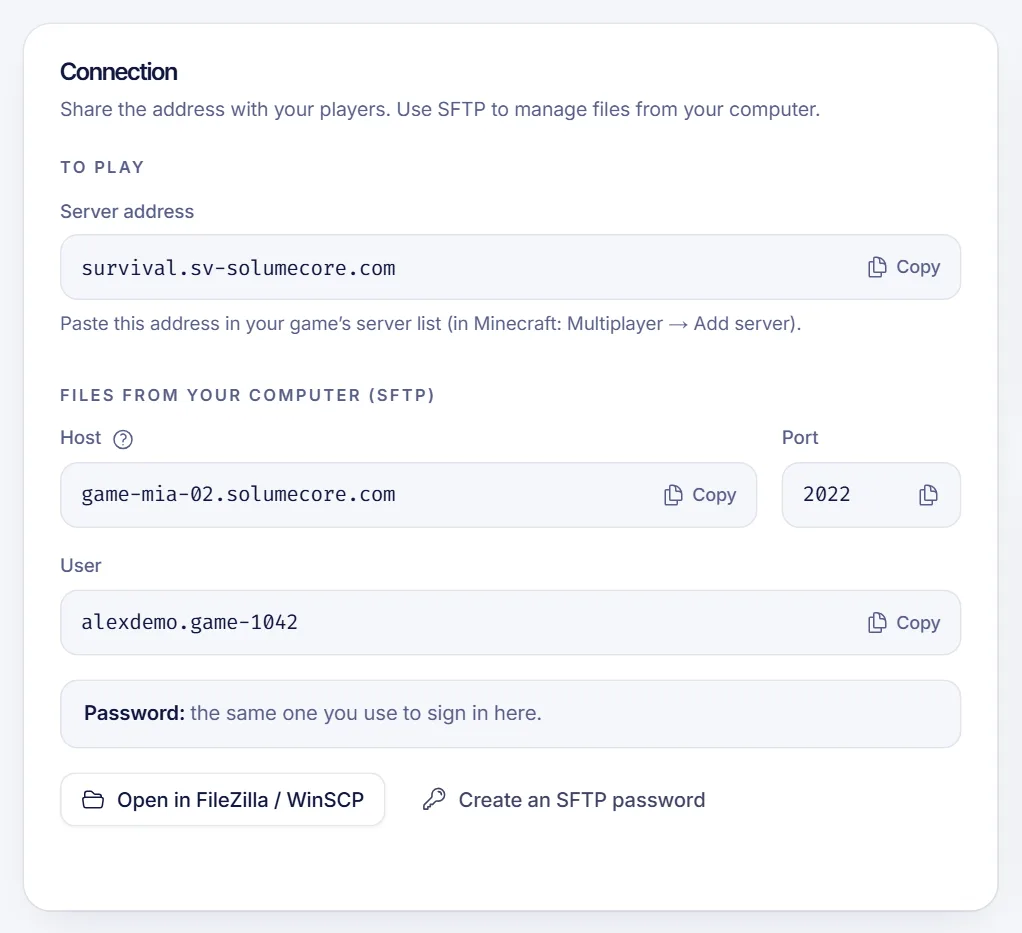
sftpcommand. - Your server's SFTP details: host, port, username and password (or an SSH key). A managed panel shows them in an SFTP section. Many game hosts use port
2022instead of22, so do not assume.
If you want to know what SFTP is: it is a secure way to copy files between your computer and the server, and it is the right tool for large files such as worlds.
The steps
- Stop the server. This is important; see mistake 1 below.
- Connect with your SFTP client.
- Make a backup of the current world if there is one you care about. See how to back up a game server.
- Rename or delete the existing world folder (by default
world). - Upload your world folder.
- Check that the world's own files are in the right place (next section).
- Confirm
level-nameinserver.propertiesmatches the folder name. - Start the server and watch the console.
What the folder must look like
The world folder is the one that contains level.dat. On Paper-based servers, the three dimensions are kept as separate folders next to each other:
world/                 <- Overworld (contains level.dat, region/, data/)
world_nether/          <- Nether
world_the_end/         <- The End
On a vanilla server the Nether and the End are folders inside the world (DIM-1 and DIM1). If you move a world between the two types, you may have to rearrange these folders.
The mistakes that break uploads
1. Uploading while the server is running
Minecraft writes the world back to disk when it shuts down. If you upload a world while the server is running, your files can be overwritten by the old world on the next save. Always stop the server first.
2. The world is one folder too deep
You zip a folder called MyWorld, and the archive contains MyWorld/MyWorld/level.dat. The server then generates a brand new world because it cannot see level.dat where it expects. Open the folder after upload and check that level.dat is directly inside it. The import tool in SolumeCore's panel looks inside archives and finds the world even when it is nested.
3. level-name does not match
The server loads the folder named in level-name. If you uploaded survival2025 and server.properties still says world, you will get a fresh world. Either rename the folder or edit level-name. Both are case-sensitive on Linux. More settings in server.properties explained.
4. The world is newer than the server
A world saved by a newer Minecraft version cannot be safely opened by an older one. The server may refuse to start, or load and corrupt chunks. Match or exceed the world's version. Upgrading is usually safe; downgrading is not.
5. Uploading in text mode, or via plain FTP
Plain FTP and the wrong transfer mode can corrupt binary files. Use SFTP and let the client transfer in binary. If a world loads with missing chunks, corrupted files are a prime suspect.
6. Uploading thousands of tiny files
A big world contains many small region and data files, and uploading them one by one is slow and fragile. Compress the world into one .zip or .tar.gz, upload that single file and extract it on the server with the file manager. This is faster and avoids half-finished transfers.
7. An interrupted transfer
If your connection drops halfway, you may end up with a half-uploaded folder that looks complete. After a large upload, compare the folder size on the server with the original. If unsure, re-upload.
8. Wrong file permissions or owner
On a self-managed machine, files uploaded as one user may not be readable by the user running the server. On a managed panel this is handled for you, but if a file refuses to load, a permission value of 755 for folders and 644 for files is typical.
9. Leftover files from the old world
Old session.lock, uid.dat or cached data are normally harmless, but if you merged two worlds into one folder, you may have mixed region files. Replace the folder wholesale instead of merging.
10. Forgetting the extra files
The playerdata/ folder holds each player's inventory and position. If you want players to keep their stuff, keep this folder. If you want a fresh start on the same map, delete it.
Using the panel's importer instead
A managed panel can often save you the manual route. In SolumeCore's world section, you can import a world from an archive. It handles worlds from singleplayer, from another host or from a download, and finds the world inside the archive even if it sits in a subfolder.
If your current server is on another host, the migration tool copies everything from server to server: you enter that host's SFTP details and files are transferred without passing through your computer. We only bring files in, never the other way, and the stored password is encrypted and deleted when the copy finishes.
Check that it worked
Join the server and verify:
- Your builds are where you left them.
- The spawn point is correct.
- The Nether and the End load.
- Player inventories are as expected.
If something is off, restore the backup you made in step 3 and retry.
FAQ
What is the SFTP port for a Minecraft server?
It depends on the host. Many game panels use 2022. Always read the port from your panel instead of guessing.
Can I upload a world while the server is on?
No. Stop it first, or the server may overwrite your upload when it saves.
How do I download my world to my computer?
Same tools, opposite direction: stop the server, connect and download the world folder (or a zip of it).
Why does my uploaded world generate a new one?
Most likely level-name does not match the folder, or level.dat is nested one folder too deep.
Is there a size limit?
Large worlds work, but upload a compressed archive. The practical limits are your connection and your plan's disk space.
Need a home for your world?
Bring your world to Minecraft hosting and use the importer or the migration tool, or follow how to make a Minecraft server from scratch. The help center has short answers if a step fails.