Game Server Backups: The 3-2-1 Rule Applied
How to protect your game server with the 3-2-1 backup rule: what to save, how often, where to keep it, how to restore it and how to prove it works.
The 3-2-1 rule says to keep 3 copies of your data, on 2 different kinds of storage, with 1 copy off-site. For a game server, that means your live server, a backup made by your host's panel, and a copy you download and store somewhere else. A backup you have never restored is only a hope, so schedule backups, lock the important ones, and test a restore.
Why game servers need real backups
A world represents hundreds of hours of your community's work. It can be lost in many ways:
- A plugin or mod update corrupts chunks.
- Someone with permissions griefs or deletes a build.
- A command wipes the wrong thing.
- A crash during saving damages files.
- You, in a hurry, delete the wrong folder.
- The hardware, or the provider, has a serious incident.
Most of these are mundane. They happen to everyone, sooner or later.
The 3-2-1 rule, applied
| Part | General meaning | For your game server |
|---|---|---|
| 3 copies | The original plus two backups | The live server, a panel backup and a downloaded copy |
| 2 media | Different storage types | The server's disk, plus a backup stored apart from it, plus your own computer or cloud storage |
| 1 off-site | A copy in a different place | A copy that is not on your host's infrastructure |
Being honest about what a panel backup is: it is stored apart from your server's files, which protects you against mistakes, bad updates and corruption. It is still part of your host's infrastructure, so it does not protect you against a problem that affects the provider. That is what the off-site copy is for.
Step 1: Decide what to back up
- The world (the biggest value).
- Configuration:
server.properties, plugin and mod configs. - Plugins and mods (or a list of them with versions).
- Databases used by plugins, such as economy or permissions data.
- Anything unique: custom resource packs, data packs, scripts.
Temporary stuff does not need saving. A good panel lets you exclude logs, caches and temporary files with patterns like logs/* or *.tmp, which makes backups smaller and faster.
Step 2: Back up in the panel
In SolumeCore's panel, the backups section lets you:
- Create a backup now, a compressed copy of the server's files.
- Schedule automatic backups, for example daily.
- Lock a backup so it cannot be deleted by accident or replaced by rotation.
- Set retention: keep a number of recent backups and let older ones clear themselves, keeping the newest of each day, week or month.
- Check integrity through a checksum that proves a backup was not damaged after being made.
- Restore all of it, or only the part you need, such as just the world.
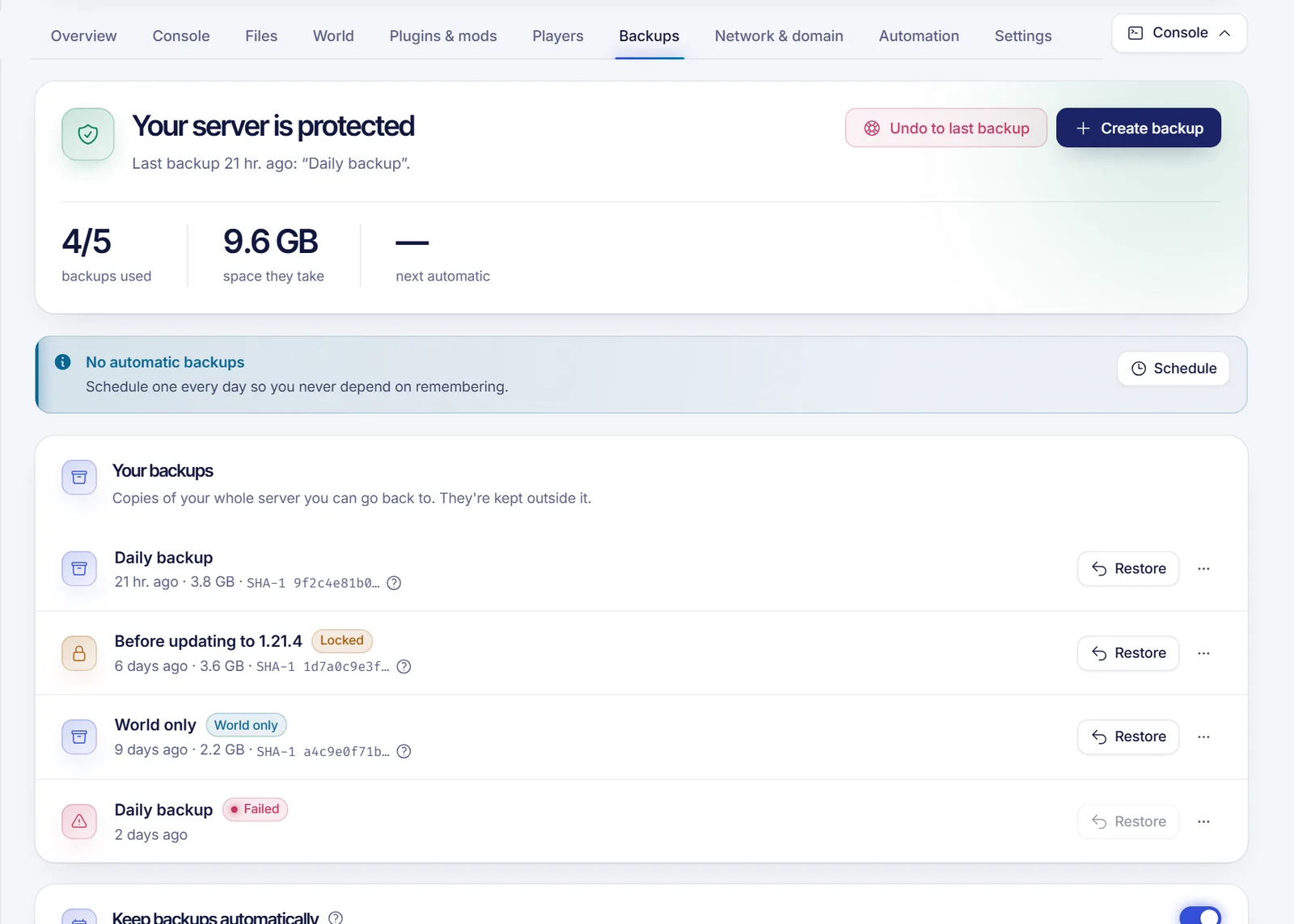
How many backups you can keep depends on your plan. When you hit the limit, delete one (locked ones cannot be deleted) or upgrade.
Step 3: Choose a schedule
How often depends on how much work you can afford to lose.
| Server type | Suggested frequency |
|---|---|
| Small private world | Daily |
| Active community with building every day | Daily, plus a manual one before big changes |
| Network with many players or an economy | Several per day, plus off-site daily |
| Testing server | Before experiments |
Chain tasks in the scheduler: warn players, save the world, then back up. A scheduled task can do all three in order. Combined with a nightly restart, you get a consistent backup at a quiet hour.
Step 4: Always back up before changes
Make a manual backup before:
- Updating the game version or the server software.
- Installing a modpack or a big plugin.
- Resetting or regenerating a world.
- Running a command you are not sure about.
- Importing or migrating files.
Lock that backup until you are sure the change worked.
Step 5: Keep an off-site copy
Download a backup or your world folder using the file manager or SFTP (see upload a Minecraft world via SFTP for the tools), and store it somewhere else: your own computer, an external drive or a cloud storage account. Do this regularly, weekly for most communities, and before major milestones.
For large worlds, compress the folder first and download the single archive.
Step 6: Test your restores
The only backup that counts is one you have restored. Every so often:
- Restore a backup to a test server or a separate folder.
- Start it and join.
- Check that your builds, inventories and plugins data are there.
If the restore is partial, such as the world only, remember what it does and does not include. Restoring over a running server stops it first, and the "delete files created after the backup" option decides whether the result is an exact replica or a merge.
Servers, VPS and apps: the same idea
- On a VPS, use backups for long-term copies and snapshots for instant restore points before risky changes. Snapshots live on the same disk, so they are lost on a reinstall; backups are stored apart from your server and survive it. See how to secure a new VPS.
- For apps, your code lives in Git, but data on disk does not; keep databases and uploads backed up. A clean deploy wipes the server's files. See deploy a Node.js or Python app with Git.
Mistakes to avoid
- Keeping all backups on the same server you are protecting.
- Never testing a restore.
- Relying on one old backup.
- Letting rotation delete the only good copy; lock it.
- Backing up while the world is being written without saving first.
- Forgetting the databases.
FAQ
How many backups should I keep?
Enough to go back before a problem you notice late: several recent daily ones, a weekly one and a monthly one is a good pattern.
Do backups slow the server down?
A backup reads a lot of data, so do them in quiet hours. Excluding logs and caches helps.
Can I back up while the server is running?
Yes, and a good panel handles it. For the cleanest result, save first, or schedule backups during a restart window.
What is the difference between a backup and a snapshot?
A snapshot is an instant restore point inside the same disk; a backup is a separate copy that survives a reinstall.
What if my plan includes few backups?
Use the off-site copy more often. Download a copy before major changes so you do not rely on the plan's slots.
Protect your world
See the backup tools in Minecraft hosting or a VPS, and read what a panel should include in what a game server control panel is.