Deploy a Node.js or Python App With Git
A guide to deploying a Node.js or Python app from GitHub or GitLab: repository, deploy key, environment variables, build commands and auto deploys.
To deploy a Node.js or Python app with Git, put your code in a repository, give your host the repository link (plus a read-only deploy key if it is private), set the build and start commands, add your secrets as environment variables and press deploy. After that, a webhook can publish every push to your chosen branch by itself. This guide covers each piece and the mistakes that break first deploys.
What "deploying with Git" means
Instead of copying files by hand, the server pulls your code from a repository. Every release is a commit, so you can see what changed and go back. The usual flow:
- You push to a branch.
- The host fetches that commit.
- It installs dependencies and runs a build step if you have one.
- It starts (or restarts) your app.
Step 1: Prepare the repository
Before the first deploy, make sure the repo contains what the host needs.
Node.js
- A
package.jsonwith the dependencies and astartscript. - A lockfile (
package-lock.json,pnpm-lock.yamloryarn.lock) for reproducible installs. - A
.gitignorethat excludesnode_modulesand.env.
Python
- A
requirements.txt(or apyproject.toml) listing dependencies. - An entry file, commonly
app.pyormain.py. - A
.gitignorethat excludes virtual environments and.env.
Tip: run the app from a fresh clone on your own machine before you deploy. If it fails there, it will fail on the server.
Step 2: Choose the runtime
Hosting for code, such as SolumeCore's programming plans, runs your app in an isolated container with a runtime you pick when you buy: Python, Node.js, Bun, Deno, Go, Java or Rust, each with several versions. Pick the version your project was built for. The runtime is part of the plan, so a different language means a different plan.
Step 3: Connect the repository
Paste the repository link:
- Public repo: the HTTPS link is enough.
- Private repo: use the SSH link, which starts with
git@. The host generates a deploy key (a public key) that you add to the repository. The deploy key should be read-only; do not enable write access.
On GitHub: repo Settings > Deploy keys > Add deploy key, paste the key, leave "Allow write access" unchecked. On GitLab: Settings > Repository > Deploy keys.
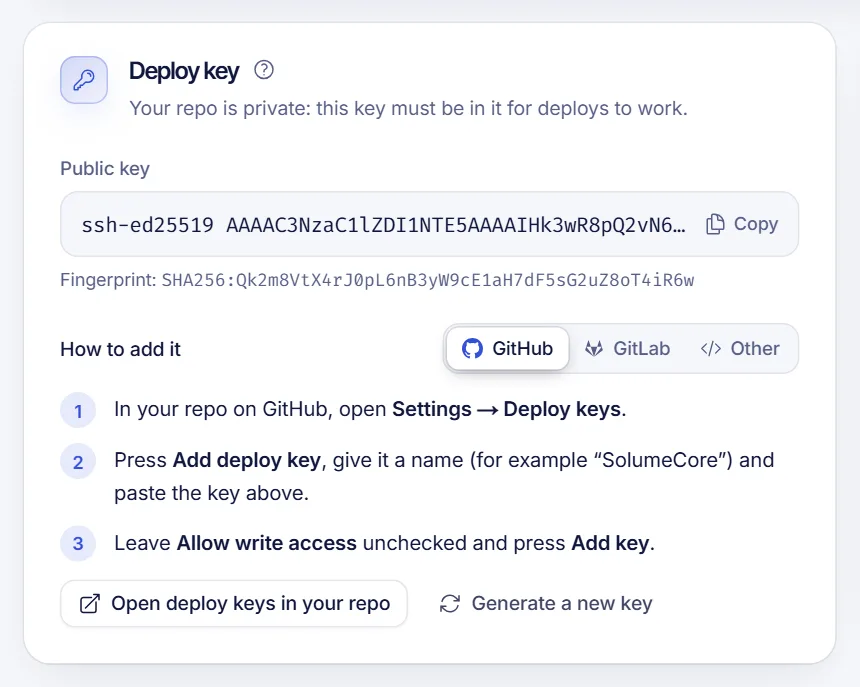
If you later make a public repo private, come back and add the key then.
Step 4: Set the commands
You usually need two commands:
- Build command (optional): runs once after each deploy, before the app starts. For Node it is often
npm ci && npm run build; for Python it can bepip install -r requirements.txt. Output goes to the deploy log. - Start command: what launches your app, such as
node index.js,npm startorpython app.py.
Dependencies can also be installed automatically at startup when the host finds a package.json or a requirements.txt.
Step 5: Add environment variables
Configuration and secrets, such as API keys and database passwords, do not belong in the repository. Set them as environment variables in the panel and read them from your code:
const token = process.env.DISCORD_TOKEN;import os
token = os.environ["DISCORD_TOKEN"]If you have a database, create it from the panel. Programming plans can create MySQL databases with their own user and password.
Step 6: Deploy and read the log
Press Deploy now. A deploy goes through stages (queued, cloned, building, running), and the log shows every line. If one fails, the log tells you where it stopped. The usual suspects are:
| Failure | Typical cause |
|---|---|
| Cannot fetch the repository | Wrong link, or a private repo without the deploy key added |
| Dependency install fails | A missing lockfile, an incompatible version of Node or Python |
| App starts and exits | A missing environment variable, or wrong start command |
| Port errors | The app listens on the wrong port or address |
The last one matters for web apps: your app should listen on the port and address the host gives you, not a hard-coded one. Read them from environment variables when you can.
Step 7: Turn on automatic deploys
Once the first deploy works, enable auto deploy for a branch. The host gives you a webhook URL; add it in your repository's settings (GitHub or GitLab webhooks) so each push tells the host to deploy. You then ship by running git push.
Be careful with clean deploys
A clean deploy deletes every file on the server and clones the repository again. Anything that is not in the repo is lost, including SQLite databases, uploads, node_modules and the .env file. If your app stores data on disk, move it to a database, or take a backup before cleaning. See backups for game servers and apps for the general approach.
Make it a habit
- Deploy from a stable branch such as
main, and develop on others. - Tag releases so you can roll back to a known good commit.
- Keep secrets out of Git, always.
- Test locally from a clean clone.
FAQ
Do I need Docker?
No. You choose a runtime and the host runs it in a container for you. Docker is optional if you manage your own VPS.
Can I deploy without Git?
Yes. Upload the files with the file manager or SFTP. Git is better when you want history and automation.
Why did my deploy succeed but the app is not reachable?
The app might be listening on the wrong port or on localhost only. Bind to the address and port the host provides.
Can I deploy a private repository?
Yes, with the SSH link and a read-only deploy key added to the repo.
Is there a build on every push?
Only if you enabled auto deploy for that branch. Without it, you deploy manually.
Ready to ship?
See programming hosting, with pages for Node.js and Python, and keep host a Discord bot 24/7 in mind if your project is a bot. For machines you control end to end, look at a VPS.