How to Secure a New VPS: SSH Keys, Firewall, Fail2ban
A checklist to secure a freshly created Linux VPS: a non-root user, SSH keys, a ufw firewall, fail2ban, automatic updates and backups before you deploy.
To secure a new VPS, do six things in the first hour: update the system, create a non-root user, log in with SSH keys and turn off password and root logins, enable a firewall that only allows the ports you use, install fail2ban to block repeated login attempts, and turn on automatic security updates. Then take a backup. A fresh server on the public internet starts getting scanned within minutes, so do not leave this for later.
The commands below assume Ubuntu or Debian. Adapt the package commands for other distributions.
Before you start: keep a way back in
Hardening SSH can lock you out if you make a mistake. Two safeguards:
- Keep your current SSH session open while you test changes in a second one.
- Know your rescue route. On SolumeCore you can use the panel's web terminal, and you can take a snapshot before risky changes.
1. Update everything
sudo apt update && sudo apt full-upgrade -y
sudo reboot
Fresh images are rarely fully patched. Do this first.
2. Create a non-root user
Working as root means every typo has maximum power.
adduser deploy
usermod -aG sudo deploy
From now on, log in as deploy and use sudo when needed.
3. Use SSH keys instead of passwords
Passwords can be guessed; a key pair cannot, in practice. On your computer:
ssh-keygen -t ed25519 -C "my-laptop"
ssh-copy-id deploy@YOUR_SERVER_IP
Keep the private key private, protect it with a passphrase and back it up somewhere safe. If you added your public key when you created the server, it may already be in place. A SolumeCore VPS can be created with your SSH key configured.
Test it from a new terminal: you should log in without a password prompt for the server account.
4. Lock down SSH
Edit /etc/ssh/sshd_config (or a file in /etc/ssh/sshd_config.d/) and set:
PermitRootLogin no
PasswordAuthentication no
PubkeyAuthentication yes
Then check and reload:
sudo sshd -t
sudo systemctl reload ssh
Open a second terminal and confirm you can still log in before closing the first one.
Changing the SSH port is optional. It reduces noise in the logs but is not real security; keys are what protect you.
5. Turn on a firewall
A firewall stops anything from reaching a service you did not mean to expose. With ufw:
sudo ufw default deny incoming
sudo ufw default allow outgoing
sudo ufw allow OpenSSH
sudo ufw allow 80/tcp
sudo ufw allow 443/tcp
sudo ufw enable
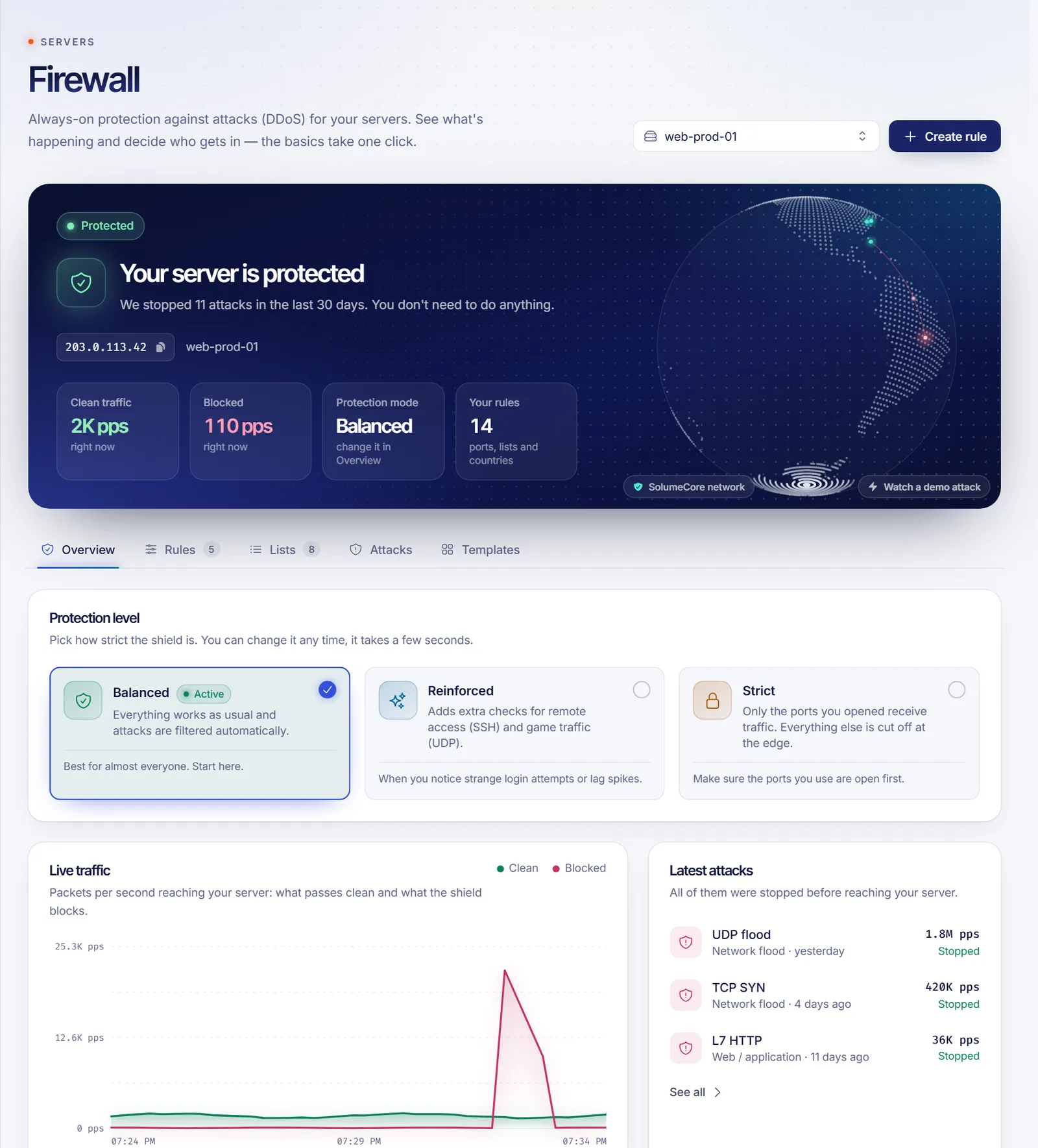
Open only what you need. For a game server, add its port instead of 80 and 443. The SolumeCore panel also has a network firewall with ready-made templates, which filters traffic at the network level, outside your machine. Use both: the network firewall for the first line, ufw as the second.
6. Install fail2ban
fail2ban watches logs and temporarily bans addresses that fail to log in repeatedly.
sudo apt install fail2ban -y
sudo systemctl enable --now fail2ban
sudo fail2ban-client status sshd
The default settings protect SSH. With key-only login, it mostly cuts noise and protects any other service you later expose.
7. Automatic security updates
sudo apt install unattended-upgrades -y
sudo dpkg-reconfigure --priority=low unattended-upgrades
This installs security patches without you remembering to. Still reboot occasionally for kernel updates.
8. Reduce what is running
List what is listening on the network:
sudo ss -tulpnAnything you do not recognize or need should be disabled or removed. Every open service is a possible way in.
9. Back up and snapshot
Security is not only keeping attackers out; it is also recovering when something goes wrong.
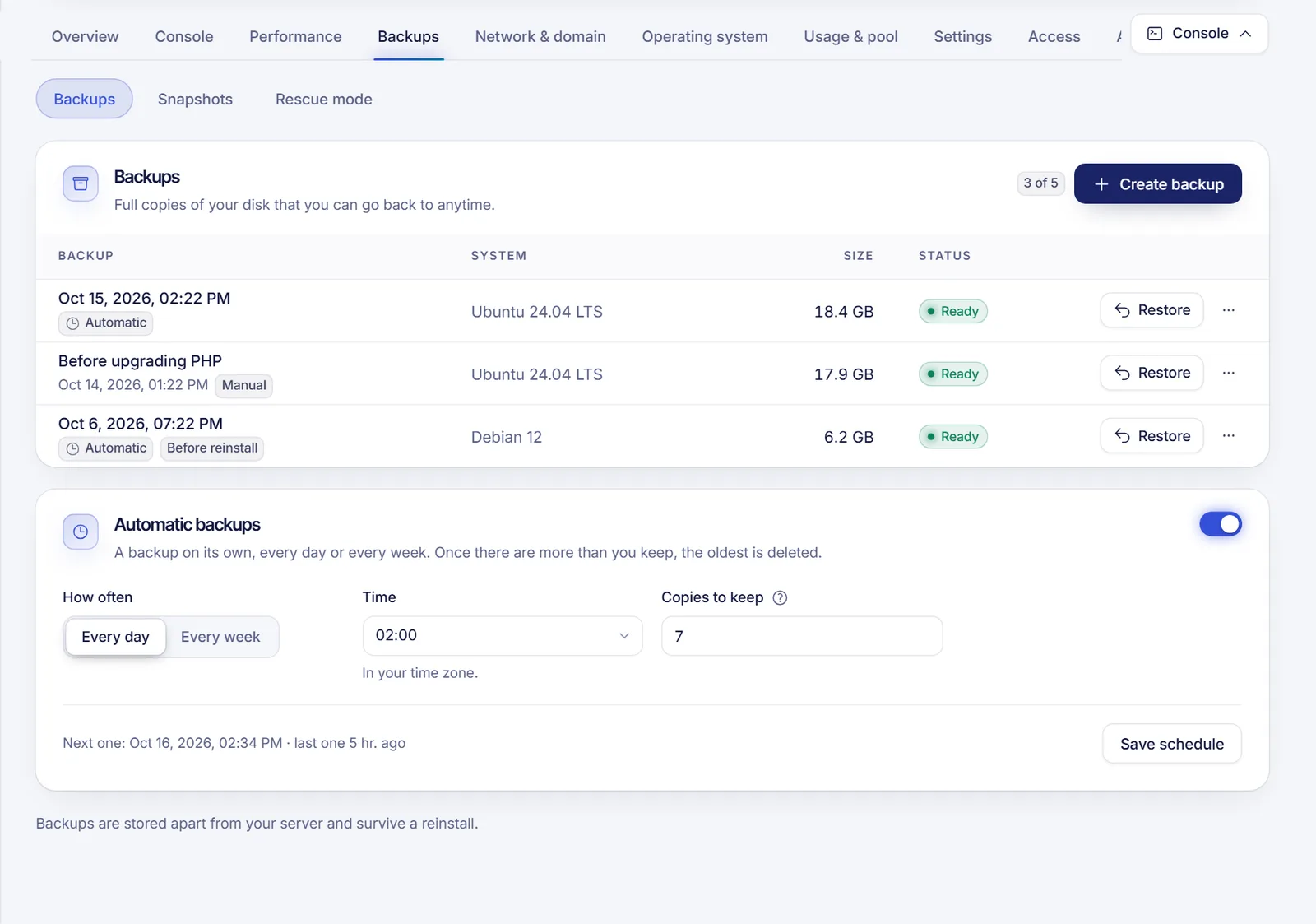
- Take a snapshot before updates or risky changes: it freezes the disk in an instant, so going back takes seconds. A snapshot lives on the same disk, so it does not survive a reinstall.
- Use backups for long-term copies. SolumeCore stores them apart from your server, and they survive a reinstall.
For a wider strategy, read game server backups with the 3-2-1 rule; the principles apply to any server.
10. Habits that keep you secure
- Review who has SSH access and remove old keys.
- Never expose databases to the whole internet; bind them to localhost or restrict by IP.
- Use strong, unique passwords for panels and applications, and a password manager.
- Keep your applications updated, not only the OS.
- Look at
/var/log/auth.logfrom time to time.
Quick checklist
| Done | Task |
|---|---|
| ☐ | System updated and rebooted |
| ☐ | Non-root user with sudo |
| ☐ | SSH keys working |
| ☐ | Root and password login disabled |
| ☐ | Firewall on, only needed ports open |
| ☐ | fail2ban running |
| ☐ | Automatic security updates |
| ☐ | First snapshot and backup taken |
FAQ
Is changing the SSH port worth it?
It cuts log noise, but it is not a defense. Keys and a firewall are what matter.
Do I need fail2ban if I use SSH keys?
It is not essential for SSH, but it still helps with other services and reduces brute-force noise.
Is my VPS protected against DDoS?
Network-level filtering is separate from host hardening. Read DDoS protection for game servers to understand what each layer does.
What if I locked myself out?
Use the provider's web terminal or recovery option. On SolumeCore, the panel has a web terminal.
Does this apply to Windows?
The ideas do (updates, strong auth, firewall), but the tools differ. For Windows VPS plans, restrict Remote Desktop access with a firewall rule.
Start from a solid base
Get a VPS with full root access and a firewall in the panel, or see how it compares in VPS vs VDS vs shared hosting. The docs and help center cover the panel.