Create an account and place your first order
Create your SolumeCore account, confirm your email, pay with the enabled methods, and see what happens after payment until your service is ready.
Creating a SolumeCore account is free: you only pay when you order a service. The full path takes four steps: create the account, confirm your email, pick a plan and configure it, and pay. Once the payment is confirmed, the service and its invoice are created and provisioning starts on its own, with no ticket and no waiting for a person.
This guide follows that path in order and shows the exact labels you will see. Your account lives in the client panel at dashboard.solumecore.com; plans are chosen on the main website. If you have not decided what to buy yet, start with what SolumeCore is.
1. Create your account
Open the sign-up page of the client panel (dashboard.solumecore.com) and choose Create an account. The form has two steps.
Step "Your account"
| Field | What to enter |
|---|---|
| The address where you will receive the confirmation link, invoices and access details | |
| Username | 3 to 24 characters: lowercase letters, numbers and _ |
| Full name | Your name |
| Password | At least 10 characters. A strength meter shows how strong it is |
| Repeat the password | The same password again |
| Country | Pre-filled from your browser when possible |
| Phone | Optional |
You can also sign up with Continue with Google or Continue with Discord, when those options are enabled. A security check against bots may appear before you can continue.
Step "Billing": the name on your invoices, address, city, state or province, postal code, billing country, and an optional tax ID (VAT and similar). You then accept the terms and conditions and the privacy policy and press Create an account.
If you start from a plan on the website instead, checkout shows a You need an account to pay box with Sign in and Create account tabs. Your configuration is kept while you do it. That short form asks for name, username, email, password, country and the terms.
Important: When email confirmation is on, the billing address from the sign-up form is not saved yet, because the account does not exist as a confirmed account. You will add it later, either in checkout with + Add address or in the panel under Profile & security, tab Billing details. Checkout cannot be completed without a default billing address.
2. Confirm your email
Right after sign-up you see Check your email with a link sent to your address. Open the email and press Confirm my email. Three details matter:
- The link works once, and for 24 hours by default. Opening it a second time, or after it expires, sends you to the login page with a message that the verification link expired or is not valid, and you can request a new one from there.
- Confirming does not log you in. You are sent to the login page with the message "Email confirmed. Now sign in."
- If you never confirm, the account can be removed automatically after a while (48 hours by default), so confirm soon.
If the email does not arrive, check spam. On the login page, use Send the confirmation email again to get a new link. A welcome email arrives once you confirm.
3. Choose and configure a plan
Pick a plan on the website: VPS, VDS, web hosting, game servers or bots and apps. Each product page lets you choose the size and location first, and the checkout keeps that choice. Before paying you set up what is specific to the product:
| Product | What checkout asks for |
|---|---|
| Game server | A server name, and the installer where the game has several (for example Paper, Fabric or Forge for Minecraft). The newest version is installed and you can change it later from the panel |
| Bots and apps | A name, and optionally a Git repository to deploy as soon as the service is delivered |
| VPS and VDS | The operating system, an optional machine name, an SSH key from your account, and an optional extra NVMe disk |
| Web hosting | Your domain, or a free subdomain of ours where the location offers one. The tool checks that the subdomain is available |
Checkout also links to a free assistant to move a server or site from another host. See locations if you are still deciding where to place it.
4. Pay
On the payment step you choose:
- How often you pay: monthly, quarterly, every 6 months or yearly. Longer cycles may show a discount, set by the team.
- Billing details: pick one of your saved addresses, or add one.
- How you pay: the methods shown are the ones enabled at that moment.
- A coupon, if you have one, through Have a coupon?. It is validated and discounted when you confirm the payment, so the total may not reflect it yet.
The summary shows Due today.
Payment methods
| Method | Label | Notes |
|---|---|---|
| Card | Card | Processed by Stripe: card details never reach SolumeCore servers |
| PayPal | PayPal | Appears only if PayPal is enabled and available |
| Account balance | Balance | Needs enough balance for the full total in single-plan checkout |
| Cryptocurrency | Crypto | Disabled by default; if it is on, checkout creates the invoice and sends you to its payment screen, and the service is delivered as soon as the network confirms the payment |
Methods can be switched on or off by the team at any time, so a method you saw before may be missing, and the list in checkout is the source of truth. A discount can also depend on the method you pick.
Cart (when it is enabled)
If the cart is on, each plan page has Add to cart next to the buy button. You can then group several services into one order, one invoice, one payment, and the panel shows a cart icon with the count. The cart holds a limited number of services (10 by default), and prices are calculated again by the server at checkout.
5. What happens after you pay
- The service and invoice are created only once the payment is confirmed.
- Checkout shows Activating your server... for a few seconds, then Your server is ready! with a Manage service button. Keep the tab open.
- You get an email with the access details: IP and user for a VPS or VDS, the cPanel username and domain for web hosting, or the
ip:portaddress for a game server or app. - You get a payment confirmation with the invoice as a PDF, and all invoices are listed under Invoices & payments.
- A game server starts its first install right away, which takes a few minutes. Follow it live from the console. For a VPS or VDS, the site quotes under a minute on average.
If the confirmation is delayed, checkout asks you to check your panel in a moment instead of paying again. If something fails during delivery, the system retries and notifies staff, and the site states you are not charged without delivery. If a location is not open yet, you may see Reservation confirmed!: your payment is taken and the service switches on by itself when the location opens, and you get an email.
Your first steps in the panel
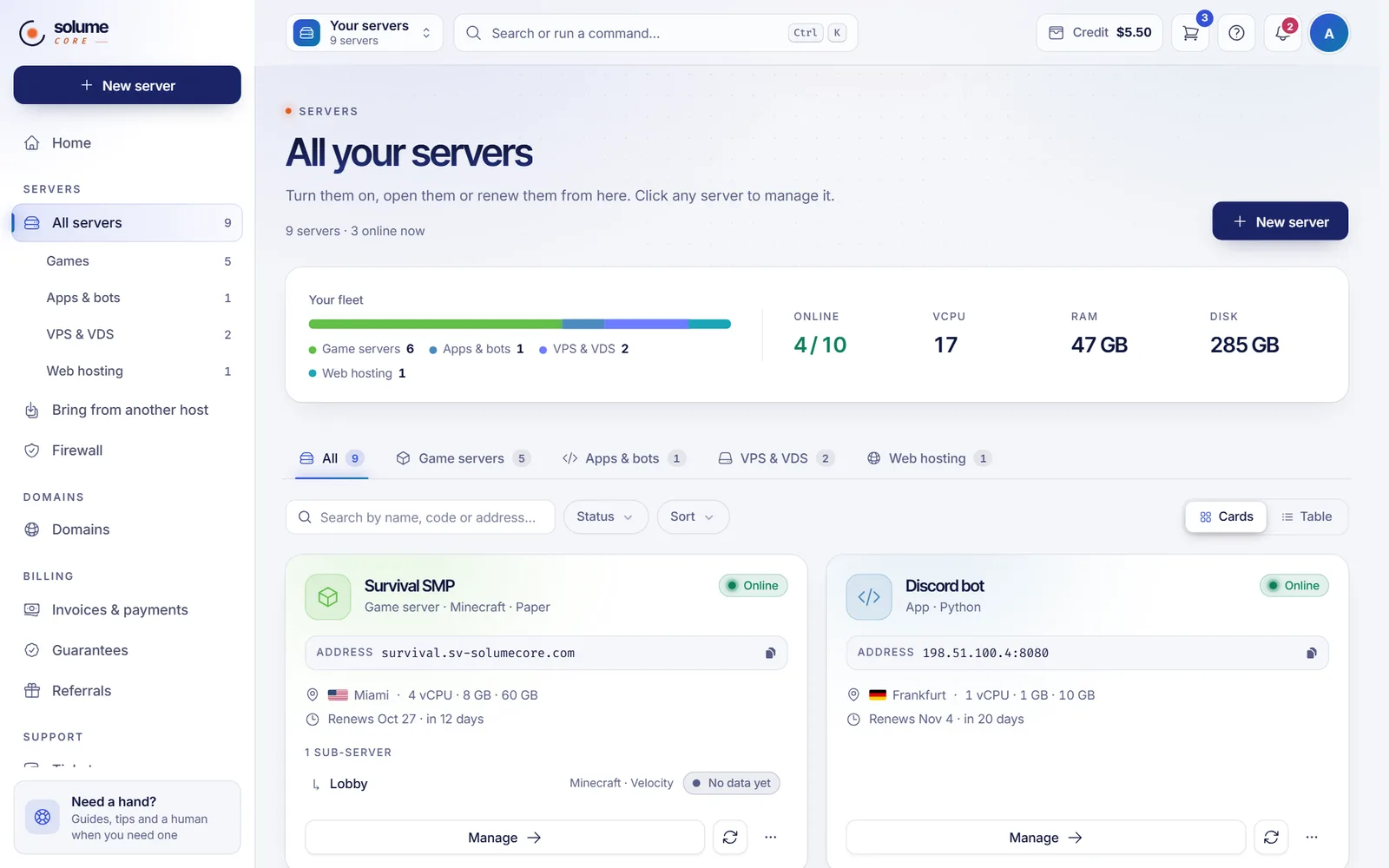
On the panel home, a Getting started card lists: verify your email, turn on two-step verification, deploy your first server, make your first backup, and connect Discord to get notices. Continue with the client panel tour.
Related documents
- What is SolumeCore?
- A tour of the client panel
- Locations and data centers
- Plans and pricing page
- Help center
FAQ
Do I need to confirm my email before I can buy?
When email confirmation is on, which is the normal setup, you cannot log in until you confirm, and checkout asks you to confirm and then log in. Use Send the confirmation email again if the link expired.
Which payment methods can I use?
Card through Stripe, PayPal, account balance and cryptocurrency exist, but each one only appears when it is enabled. Card, PayPal and balance are on by default; crypto is off by default. The checkout shows exactly what is available.
How long until my server is ready after I pay?
Provisioning starts as soon as the payment is confirmed. The site quotes an average of under a minute for VPS, VDS and web hosting. A game server then runs a first install of a few minutes, visible in the console.
Can I buy several services in one payment?
Only when the cart is enabled. In that case you add each plan with Add to cart and pay them together as one order and one invoice. If the cart is off, you buy one plan at a time.
What if I do not have a billing address yet?
The pay button stays disabled until you have a default address. In the billing section of checkout press + Add address, complete the fields and save.
Where do I find the invoice?
In the client panel under Invoices & payments, and attached as a PDF to the payment confirmation email.