View Your App's Logs and Live Console
Watch your app or bot output live, search saved logs by level and time range, and download them from the SolumeCore panel to debug errors fast.
You can watch your app's output live in the Console tab, under Live console, and read everything it printed earlier under Logs & health, where lines are saved and searchable. Use the live console to see what your app is doing right now, and the saved logs to find an error that happened while you weren't looking.
Open the live console
- Open your app in the panel.
- Go to the Console tab. Live console opens first.
- Wait for the status next to the console to read Live. While it connects you will see Connecting..., and if the connection drops it shows Reconnecting... and tries again.
The black area is whatever your program prints (console.log, print, error messages and the output of your build command). At the bottom you can Type a command and press Enter. That text goes to your program's standard input, so it only does something if your code reads from it.
Useful controls:
- Clear screen empties the view without touching your app.
- Download log saves what the console shows as a file.
- Recent commands lists what you typed before, and the up arrow brings back the previous one.
- The CPU, memory, network and disk figures update live while the app is on. If one is full, your app may be running out of resources.
If the app is off, the console tells you: The server is off. Start it with the button at the top. Use Start, Restart or Stop at the top of the app, as explained in Restart your app and set up auto-restart.
Read the saved logs
The live console only keeps what is on screen. For history, go to Console > Logs & health. The Logs card keeps everything your app prints for a number of days (7 by default; the card shows the exact number for your account) and lets you:
- Type in Search the logs to find a word, such as
erroror a user's name. - Filter by level with All, Errors, Warnings, Info or Debug.
- Pick a Time range: Last hour, Last 24 hours, Last 7 days, Everything saved, or Custom range... with From and To dates.
- Turn on Live to follow new lines as they arrive.
- Press Load older lines to go further back, or Download to save the result.
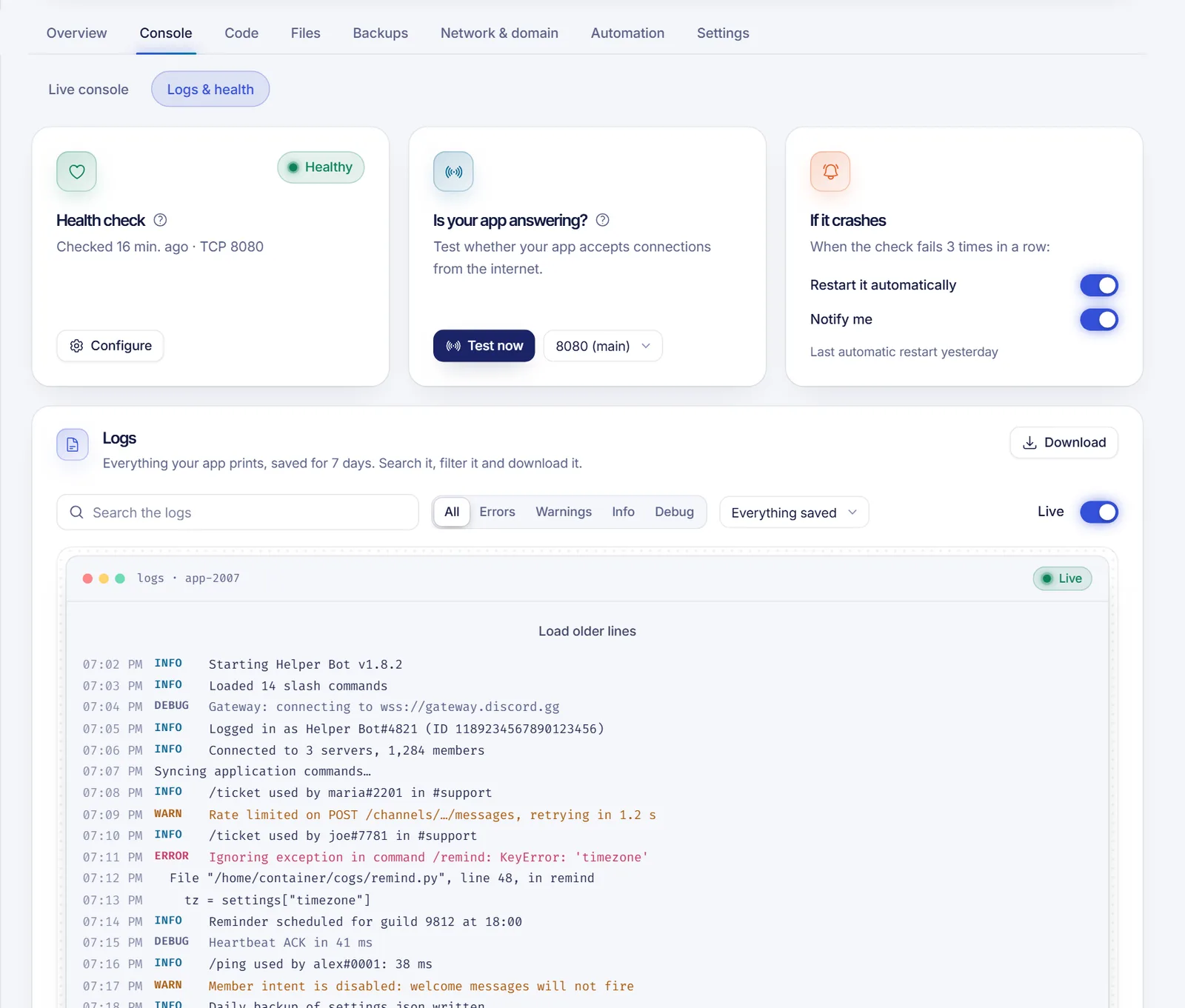
New lines appear in the saved logs about a minute after your app prints them. If the card says No logs yet, wait a minute and make sure your app writes to the console (standard output), not only to a file.
Read a deploy log
Build and deploy output has its own log. Go to Code > Deploy and press View log on the last deploy, or open Deploy history and press Log on any version. The log can be downloaded too. If a deploy failed, the last lines usually show why: a missing dependency, a wrong command or a branch that doesn't exist. See Deploy an app from GitHub or GitLab.
Check that your app answers from the internet
If your app should answer web requests, go to Logs & health and use the Is your app answering? card. Press Test now. We connect to your app's public address, like a visitor would, and tell you whether it answers and how fast. If it is running but doesn't answer, make sure it listens on 0.0.0.0 and on the port shown there, not on localhost.
Common errors and what to do
| What you see | Likely cause | What to do |
|---|---|---|
Cannot find module 'x' or ModuleNotFoundError |
Dependencies weren't installed | Set the Build command (npm install or the pip install line) and deploy again |
undefined / KeyError for a token or key |
The app hasn't read the variable | Save it under Code > Variables and press Restart to apply |
| Login or authentication errors (for example an invalid token) | A wrong or reset secret | Replace the value in Variables and restart |
| The app stops without a clear message while memory is full | It may have run out of memory | Reduce memory use or move to a bigger plan |
| Nothing is printed for a long time in Python | Output is buffered | Start with python -u main.py or use print(..., flush=True) |
Troubleshooting the console itself
- Lost the connection to the server: reload the page. If the message Your console access expired and couldn't be renewed appears, reloading renews it.
- The server is printing too much output, so some of it was skipped: the console shows a sample. Use the saved logs and filter by level to find what matters.
- You can't type in the console: it is read-only while the app is busy, for example during an install or a deploy. Try again when it finishes.
FAQ
How do I see the logs of my Discord bot or Node.js app?
Open Console > Live console for the live output, or Console > Logs & health for saved lines with search and filters. Anything your code prints with console.log or print appears there.
How long are logs kept?
By default for 7 days. The Logs card tells you the number of days that applies to your app, and you can download logs before they expire.
Can I send a command to my app from the console?
You can type a command and press Enter, and it is sent to your program's standard input. Most bots and web servers ignore it unless your code reads input.
Why are my logs empty even though the app is running?
Saved logs arrive about a minute late, and they only include what your program writes to standard output or standard error. Check the live console first.
Related articles
- Restart your app and set up auto-restart
- Why your Discord bot shows offline
- Set environment variables for your app or bot
- Deploy an app from GitHub or GitLab
Want a live console and saved logs for your own bot or API? See the app plans.