Add a Database to Your App: Postgres, Redis, MongoDB
Add a PostgreSQL, Redis or MongoDB database to your app, connect it with a variable and set up backups and outside access from the SolumeCore panel.
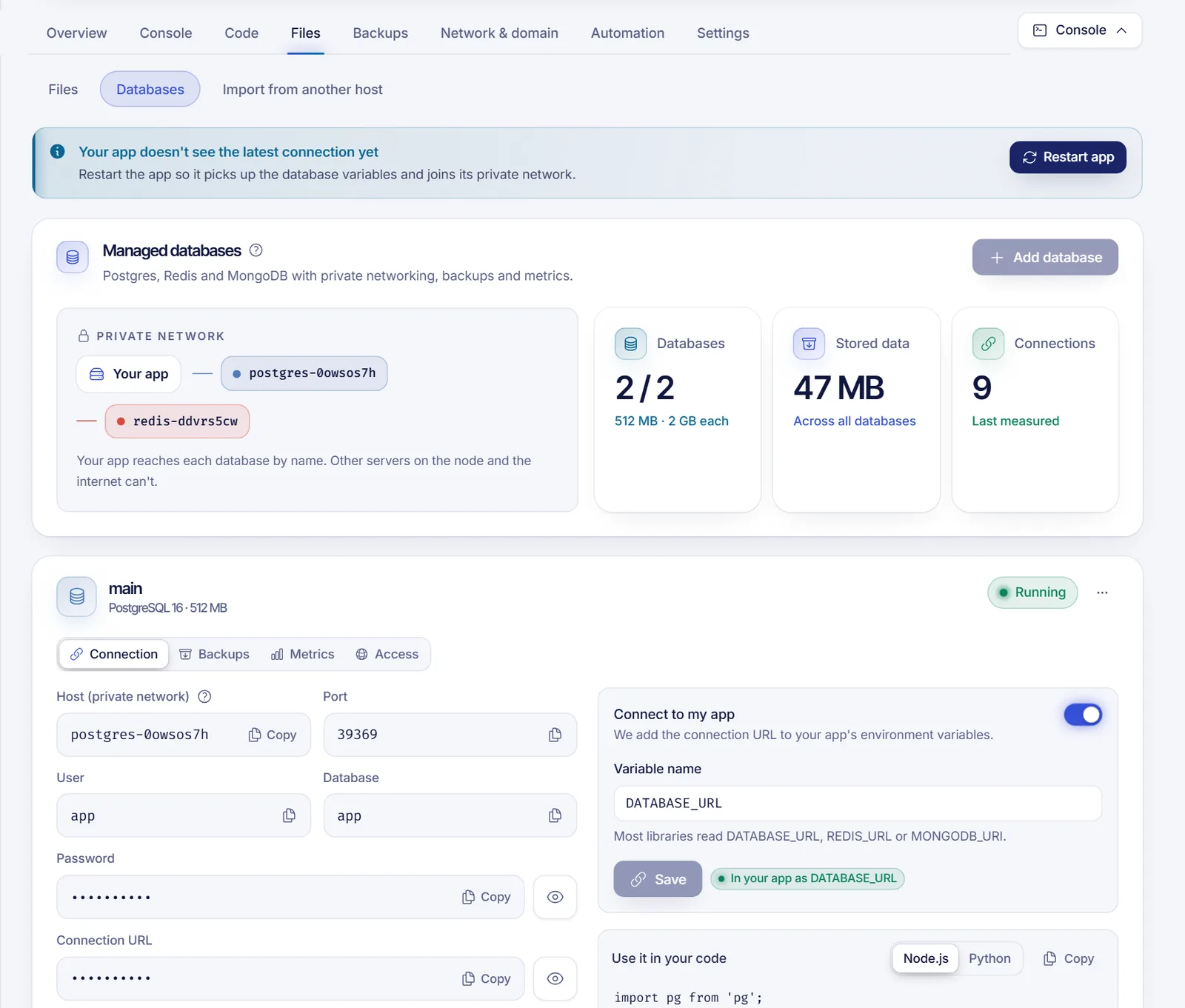
You can add a PostgreSQL, Redis or MongoDB database to your SolumeCore app from the Files tab, under Databases: press Add database, pick the engine, and the panel creates it next to your app, generates the credentials and can add the connection URL to your app's variables for you. The database lives in a private network that only your app can reach, and it is backed up automatically.
Managed databases depend on your plan. If you see Your plan doesn't include managed databases, upgrade to a plan that does. If you see Managed databases are not available right now, the feature is still being prepared on your app's machine. You can also reach your plan's limit; the screen then tells you how many databases it includes.
Add a database
Open your app in the panel.
Go to the Files tab and open Databases.
Press Add database. A three-step wizard opens: Engine, Details and Confirm.
Pick the Engine:
- PostgreSQL: a relational database for users, orders and anything that fits in tables.
- Redis: an in-memory store for caches, sessions, queues and rate limits.
- MongoDB: a document database for JSON-like data without a fixed schema.
An engine that isn't in your plan appears disabled with Not included in your plan.
In Details, give the database a Name (it is only for you). Keep Connect to my app on if you want the panel to add the connection URL to your app's variables, and check the Variable name. Most libraries read
DATABASE_URLfor Postgres,REDIS_URLfor Redis andMONGODB_URIfor MongoDB, and those are the defaults.In Confirm, review the summary and press Create database.
Creation usually takes less than a minute. The state moves from Creating and Installing to Ready, and you get a notification. The default summary shows daily backups at 04:00 UTC keeping 7, and a private network.
Connect your app to the database
If you left Connect to my app on, your app receives the connection URL in the variable you chose, such as DATABASE_URL. The app only reads variables when it starts, so apply it:
- Press Restart app in the banner Your app doesn't see the latest connection yet, or
- If your web app uses zero-downtime deploys, press Apply without downtime.
Then read the variable in your code:
// Node.js with PostgreSQL (npm install pg)
const { Pool } = require('pg');
const pool = new Pool({ connectionString: process.env.DATABASE_URL });# Python with PostgreSQL (pip install "psycopg[binary]")
import os
import psycopg
conn = psycopg.connect(os.environ["DATABASE_URL"])For Redis use REDIS_URL and for MongoDB MONGODB_URI the same way.
The Connection tab of each database shows the Host (private network), Port, User, Database, Password and the full Connection URL. The host name only works from your app, because it is resolved inside the private network. To connect or disconnect later, use Connect to my app, change the variable name and press Save.
Back up and restore
Open the Backups tab of the database:
- Automatic backups: choose Never, Every 6 hours, Every day or Every week, the Time (UTC) and how many to Keep, then press Save schedule. The panel limits how many backups you can keep per database (14 by default).
- Back up now starts a backup immediately.
- Restore brings the database back to how it was at that backup. What changed since is replaced, but a copy of the current state is kept as
antes-de-restaurar. Your app keeps running; Redis restarts for a moment.
Backups are made with the engine's own tool and stored on the database's disk.
Watch the database
The Metrics tab shows the data size, the number of connections, tables (or keys, or collections), CPU, memory and disk. Press Measure now to refresh. The Databases overview adds the totals for all your databases.
Use a desktop client from your computer
By default a database is Private: only your app can connect. To use a tool like DBeaver, TablePlus or Compass:
- Open the Access tab.
- Turn on Allow connections from outside.
- In Allowed IPs, type one IP per line, or a range such as
198.51.100.0/24. You must add at least one: opening the database to the whole internet isn't allowed. - Press Save access. The database restarts to apply the change, and the External address and External connection URL appear.
To close it again, turn the switch off and save.
Only allow IPs you trust and use a strong password. When you no longer need outside access, switch it back to private.
Delete a database
Open the ... menu and choose Delete database. The database, its data and its backups are deleted for good, and your app loses the connection variable. Back up anything you need first.
Troubleshooting
- The database state is Failed: use the menu to Restart database. If it still fails, open a ticket from the panel.
- My app can't connect: check that you applied the new variable (restart or Apply without downtime) and that you use the connection URL from the Connection tab. The private host only works from your app.
- The variable name is rejected: use capitals, numbers and underscores, such as
DATABASE_URL, and a name no other database uses. - I can't add another database: you have reached the limit your plan includes.
FAQ
Which databases can I use with my app?
PostgreSQL, Redis and MongoDB, as far as your plan includes them. Each one runs next to your app in a private network.
Is my database exposed to the internet?
No, not unless you open it. By default only your app can connect. If you allow outside connections, only the IPs you list can get through.
Are database backups automatic?
Yes, when you keep the schedule on. The wizard proposes a daily backup, and you can change the frequency, time and number of copies in the Backups tab.
Can I use MySQL?
The databases you can add from an app's Databases screen are PostgreSQL, Redis and MongoDB. If you need MySQL for a website, that is part of web hosting.
Related articles
- Set environment variables for your app or bot
- Zero-downtime deploys for your app
- Restart your app and set up auto-restart
- Deploy an app from GitHub or GitLab
Need a database right next to your code? Look at the app plans and see which ones include managed databases.