Set Environment Variables for Your App or Bot
Store bot tokens and API keys as encrypted environment variables, import or export a .env file and apply changes with a restart from the SolumeCore panel.
You set environment variables for your SolumeCore app under Code > Variables: add a name and a value, press Save variables and restart the app so it reads them. It is the right place for bot tokens, API keys and database URLs, because values are stored encrypted and never need to appear in your code or in Git.
Add a variable
- Open your app in the panel and go to Code > Variables.
- Press Add a variable (or Add variable under the list if you already have some). Tip: you can also paste a whole
.envinto a name field to add several at once. - Type the name (for example
API_KEY) and the value. - Press Save variables.
- Press Restart to apply. The app only reads its variables when it starts, so until it restarts it still sees the old ones.
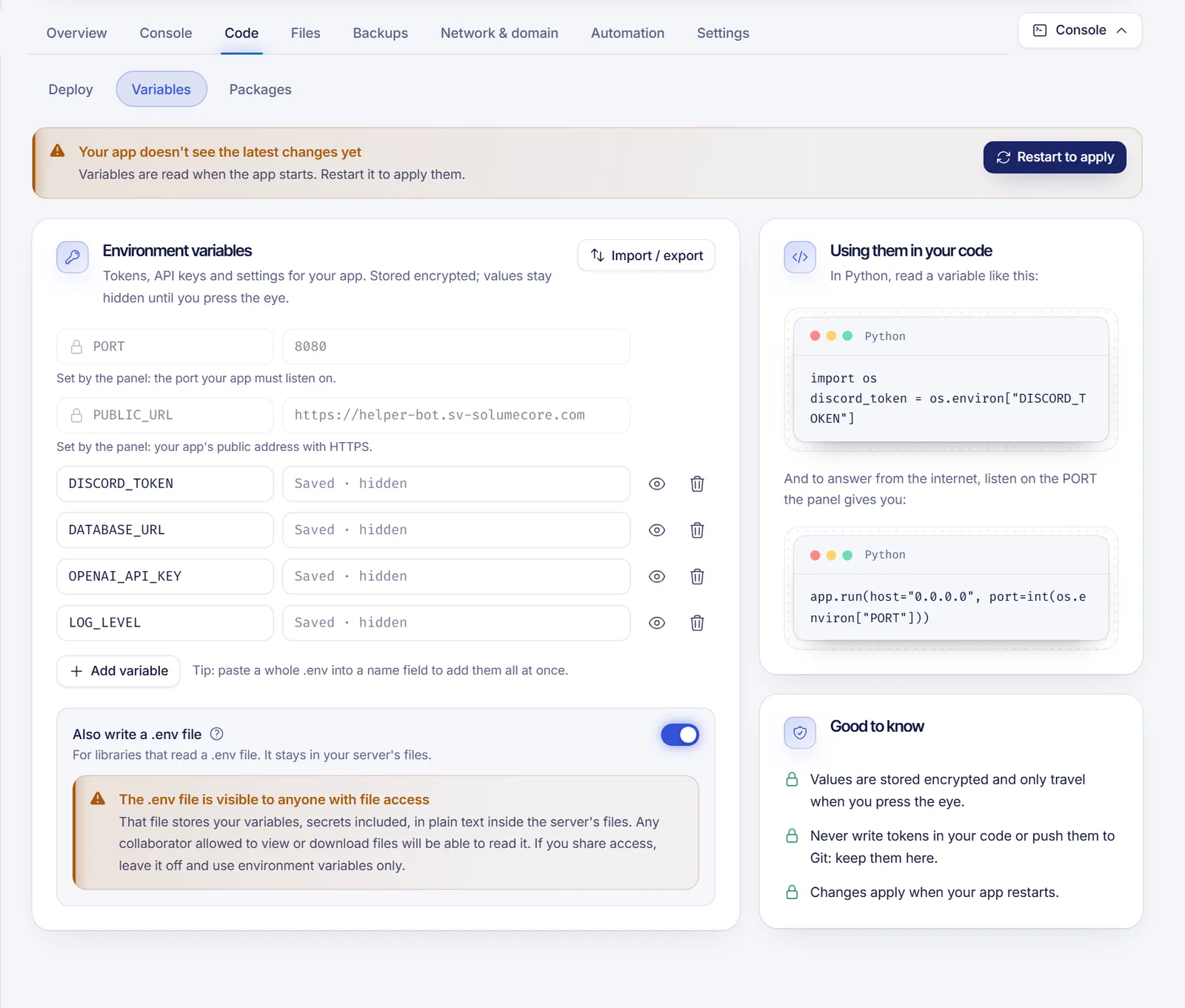
Saved values stay hidden. Press the eye next to a variable when you need to see it, and the panel fetches it only then.
Naming rules and limits
- Names use letters, digits and underscores, and can't start with a digit. By convention they are uppercase, such as
DISCORD_TOKEN. - You can have up to 100 variables, and each value can be up to 8,192 characters long.
- Some names belong to the system and can't be used:
PORT,PUBLIC_URL,STARTUP,HOME,USER,PATH,PWD,SHELL,HOSTNAME,INTERNAL_IP,TZ, and anything starting withSERVER_. If you type one, the field warns you that the name belongs to the runtime.
The two variables the panel sets for you
At the top of the list, locked, you will see:
PORT: the port your app must listen on if it answers web requests.PUBLIC_URL: your app's public HTTPS address. It is empty until you connect a domain; see Connect a custom domain to your app.
Import or export a .env file
If you already have a .env file, you don't have to retype it.
- Press Import / export > Import .env.
- Drop the file in the box or paste its content. Comments, quotes and multi-line values (such as private keys) are understood, and the dialog tells you how many variables it found.
- Leave Replace all my variables off to add them to the ones you have (variables with the same name are overwritten), or turn it on to start from only the imported ones.
- Press Import, then restart the app.
Export .env downloads your variables as a file. It contains your secrets in plain text, so never upload it to Git or share it.
Read the variables in your code
Use the standard way of each language:
// Node.js
const token = process.env.DISCORD_TOKEN;# Python
import os
token = os.environ["DISCORD_TOKEN"]If your app answers web requests, listen on 0.0.0.0 and on the PORT variable:
// Node.js
app.listen(process.env.PORT, '0.0.0.0');# Python
app.run(host="0.0.0.0", port=int(os.environ["PORT"]))The Variables screen also shows a snippet in your app's language that uses your first variable's name.
Apply the changes
After you save, a banner says Your app doesn't see the latest changes yet. Restart to apply restarts the app with the new values; it takes a few seconds, and you can press Open console to watch it start. If your web app uses zero-downtime deploys, the Deploy screen also offers Apply without downtime, which starts the current version again next to the running one and switches over.
Should I also write a .env file?
Some libraries, such as dotenv, read a file called .env. The switch Also write a .env file writes one next to your code every time you apply changes.
That file keeps your variables, secrets included, in plain text inside the app's files. Anyone you share file access with can read it. If you give other people access to the app, leave the switch off and read the variables directly from the environment.
Troubleshooting
- My code gets
undefinedorKeyError: the app hasn't restarted since you saved. Press Restart to apply, then check the exact spelling and case of the name. - The name is rejected: use only letters, digits and underscores, don't start with a digit and avoid the reserved names listed above.
- A secret was committed to Git: remove it from the repository, rotate it at the provider (for example Reset Token for a Discord bot) and save the new value here.
- Are my variables lost after a deploy? No. Deploys and rollbacks keep the variables you saved in the panel. Even Reinstall from scratch deletes files, not your variables.
FAQ
Are environment variables secure in SolumeCore?
Values are stored encrypted, hidden in the panel until you press the eye, and only sent to your app when it starts. Keep them out of your code and your repository, which is the main source of leaks.
Do I need to restart the app after changing a variable?
Yes. The app reads its environment when it starts. Use Restart to apply after saving.
How do I add a Discord bot token?
Save it as DISCORD_TOKEN, either here or with the Discord bot assistant, which also checks the token with Discord. See Host a Discord bot 24/7.
Can I connect a database through a variable?
Yes. When you add a managed database you can have the panel create the connection variable (for example DATABASE_URL) for you. See Add a database to your app.
Related articles
- Deploy a Discord.js bot (Node.js)
- Deploy a Discord.py bot (Python)
- Add a database to your app
- Restart your app and set up auto-restart
Looking for somewhere to run your own code with secrets kept safe? See the app plans.