Integrations and Alerts: Discord, Telegram, Slack
Connect Discord, Telegram, Slack, Teams or signed HTTP to SolumeCore: events, filters, server alerts, the Discord bot and sound or desktop alerts.
SolumeCore can tell you what is happening on your servers without you opening the panel. There are three tools, and they stack: Notifications (the inbox, the channels where you want to be told, the alerts that watch your servers and the sound or desktop pop-up in your browser), Integrations (rules that send chosen events to Discord, Slack, Telegram, Microsoft Teams, email or your own system through signed HTTP) and the Discord bot (your community checks status and wakes a server from Discord).
All three live in the client panel under Account. This guide explains how to connect each destination, which events are sent, how to test them and which limits apply. For the raw signed-HTTP format, see Webhooks and account events.
Which one should I use?
| I want to... | Use |
|---|---|
| See everything that happened and get an email for urgent things | Notifications (inbox and channels) |
| Be warned when a server is down, CPU or disk is high, an invoice is due | Notifications → Alerts |
| Hear a sound or see a pop-up while I work in another window | Live alerts in Notifications → What and where |
| Post "my server crashed" in my team's Discord or Slack channel | Integrations |
| Get only crashes, only some files, only office hours | Integrations with filters |
| Feed my own system with signed JSON | An HTTP integration or a webhook |
| Let my players wake the server or manage the whitelist from Discord | Discord bot |
Notifications: the inbox and the channels
Account → Notifications has three tabs: Inbox, Alerts and What and where.
The inbox keeps every notice, with filters (all or unread, by category), search, and actions to mark as read or delete. Notices are grouped in categories: Alerts, Servers, Backups, Billing, Security, Support, Referrals, Announcements and Other.
In What and where you choose, for each category, which channels deliver it: Panel, Email, Discord and Telegram. The panel always shows everything. If you never touch the settings, the defaults are:
- Panel: always on.
- Email: only for Alerts and Security, because the rest already has its own transactional emails.
- Discord and Telegram: on for Alerts, Servers and Backups, but only once you connect them.
Use recommended restores those defaults.
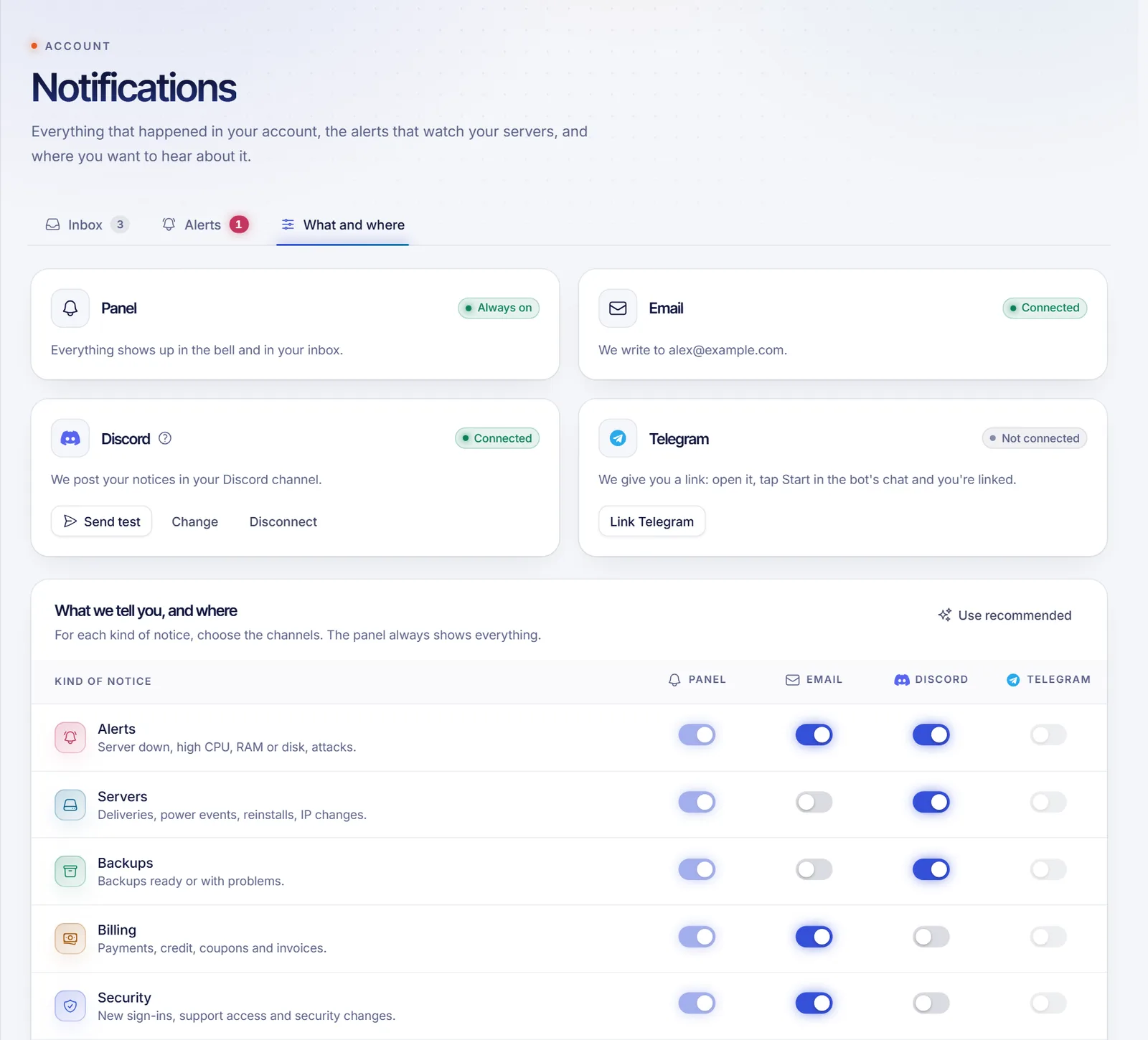
Connect Discord
- In Discord, open the settings of the channel where you want the notices, then Integrations → Webhooks.
- Create a new webhook (call it SolumeCore if you like) and copy its URL.
- In the panel, click Connect on the Discord card, paste the Webhook URL and confirm. SolumeCore sends a test message.
The URL must look like https://discord.com/api/webhooks/.... Treat it like a password: anyone who has it can post in that channel. SolumeCore stores it encrypted and never shows it again. Use Send test to check it later and Disconnect to remove it.
Connect Telegram
Click Link Telegram, open the link it gives you and press Start in the bot's chat. The panel shows "Linked as ..." once it is done. Telegram is only offered if SolumeCore has the Telegram bot configured; if you see "Telegram isn't available yet", the channel is not switched on, but you can still use your own bot through an integration (below).
Alerts that watch your servers
In Notifications → Alerts, click New alert and pick what to watch:
| Alert | When it fires |
|---|---|
| Server down | The server stops responding without anyone turning it off (confirmed with two readings in a row) |
| High CPU / High RAM | Usage stays above the percentage you choose for the minutes you choose |
| Disk almost full | Disk usage stays above your percentage for the minutes you choose |
| Invoice due soon | A number of days before an invoice is due, once per invoice |
| HTTPS certificate expiring | A number of days before the certificate of a web hosting site expires |
An alert fires once and does not repeat until it resolves, so a long problem does not flood you; it resolves when the last two readings are back under the threshold. Quick presets are offered the first time. Alerts are delivered through the channels you chose for the Alerts category.
Live alerts: sound and desktop notifications
At the bottom of What and where, the Live alerts card adds a sound and, if you allow it, a browser pop-up when a new notification arrives. Settings are stored in this browser only, so each computer or phone has its own.
- Play a sound: volume, three tones (Soft, Bright, Bell) and test buttons. Tickets get a rising melody and urgent alerts a more insistent one. The speaker button in the bell menu mutes it quickly.
- Desktop notifications: a pop-up shown only while the tab is in the background or minimized. Click Enable desktop notifications and allow it in your browser.
- What to alert: choose among Tickets and messages, Payments, Purchases and services, Urgent alerts and Everything else. By default the sound is on, the first four types are selected, Everything else is not, and desktop notifications stay off until you enable them.
These alerts depend on the panel being open in a tab. They are not push notifications and do not arrive when the panel is closed; for that, use Discord, Telegram or email.
Integrations
Account → Integrations sends events to the destination you pick. Click New integration, or start from a Quick start template: tell Discord when my server goes down, tell me when someone edits files, tell me when my VPS reboots, get status incidents in Discord. The assistant has five steps: Event, Filters, Where, Message and Test.
Destinations
| Destination | What you need |
|---|---|
| Discord | A channel webhook URL (https://discord.com/api/webhooks/...); messages arrive as an embed |
| Slack | An Incoming Webhook URL (https://hooks.slack.com/services/...) |
| Telegram | Either your account's linked chat, or your own bot: a token from @BotFather and a chat id or @channel where the bot is admin |
| Microsoft Teams | A Workflows URL ("Post to a channel when a webhook request is received") or a Teams webhook |
| Nothing: it goes to your account email | |
| HTTP | An https:// endpoint that accepts POST with JSON. You get a signing secret once |
Destination URLs and bot tokens are stored encrypted and never come back to the browser.
Events and filters
Pick specific events, a whole category (for example Files or Backups) or Everything. The filters let you keep the noise down:
- Services: all of them (and account events) or only some.
- Files: only paths matching patterns such as
/plugins/**, and ignore others such as/logs/**(*matches a name,**everything below). - Only crashes, not manual restarts: power events only when nobody caused them.
- Who did it: you, other people, SolumeCore support, the system.
- Importance: everything, warnings and up, or only critical.
- Only during some hours: days, time range and time zone.
A live preview shows how the message will look. In Message you can write your own title and text with variables such as {servidor}, {usuario}, {archivo}, {detalle} and {url}, and pick the message language.
Anti-spam and limits
- Group bursts into a summary: 50 files saved in a minute become one message. Urgent events such as crashes are never delayed: the first goes out right away and repeats are summarized. The default window is 60 seconds.
- Max per hour: 60 by default; anything over it is skipped, and the delivery log notes it.
- Pause after failures: 5 by default. An integration that keeps failing is paused, and the list shows why. Fix the destination and turn it back on.
- You can have up to 50 integrations. Each delivery is tried up to 5 times with growing waits.
Click Send test in the last step, or in the integration's menu, to send an example event through the real path. Deliveries shows what was sent, what the destination answered and lets you retry. A subuser can create integrations only on servers where the owner gave them the permission to manage integrations, and you, as owner, can see, pause or delete them.
The HTTP destination
An HTTP integration posts the full event envelope plus a ready-made message, signed like a webhook (Solume-Signature, Solume-Event, Solume-Delivery) and with an extra Solume-Schema-Version header. Unlike a webhook, the id in the body is the event id (evt_...), which is different from the Solume-Delivery value. Use the verification code in Webhooks and account events. The Payload docs button in the panel shows a real example for every event.
{
  "id": "evt_ejemplo000000000000",
  "version": 1,
  "evento": "backup.fallido",
  "familia": "servidor",
  "categoria": "backups",
  "severidad": "critico",
  "creado": "2026-01-15T09:30:00.000Z",
  "servicio": {
    "id": "clx0ejemplo0servicio",
    "codigo": "juego-1042",
    "nombre": "Survival",
    "tipo": "juego",
    "url": "https://dashboard.solumecore.com/game-servers/juego-1042"
  },
  "actor": { "tipo": "sistema", "id": null, "nombre": null },
  "datos": { "backup": "Diario 05:00", "detalle": "No queda espacio para backups" },
  "prueba": false,
  "resumen": null,
  "mensaje": {
    "titulo": "Backup failed on Survival",
    "texto": "Backup \"Diario 05:00\" could not be completed. No queda espacio para backups"
  }
}
The Discord bot
The SolumeCore bot lives in your Discord server and lets your community act on your servers within limits you set. In Account → Discord bot, click Add the bot to my Discord, then in Discord run /link (you need the Manage Server permission) and open the private link it returns. In the panel, choose which servers the bot can see and what each Discord role may do.
| Permission | What it allows |
|---|---|
| View | /server status, /server players, /server address, list the whitelist |
| Wake | /server wake: start it only if it is off or asleep |
| Power | Start, stop and restart, including the panel buttons |
| Whitelist | Add and remove players from the Minecraft whitelist |
| Console | /server command, only if you enable it for that Discord |
/server panel pins a status message that refreshes every minute. /unlink or Unlink in the panel removes access immediately. The bot works with its own key limited to the servers you expose, never your password or session, asks Discord only for the basics (view channels, send messages, embeds, read history, pin) and records every action, with who asked and which role allowed it, for 90 days.
Console commands from Discord are off by default and need three things: SolumeCore allowing them platform-wide, you enabling them for that Discord, and the Console permission on the role. Limits: 120 requests per minute and 20 changes per minute for each Discord, 6 changes per minute for a single person, up to 25 servers and 10 pinned status panels per Discord. The bot is in beta, and if the panel says "The bot is not available yet", SolumeCore has not switched it on.
Related documents
- Webhooks and account events
- AI and MCP API
- Which SolumeCore API to use
- Delegated access and subusers
- Service status and incidents
- Help center
FAQ
How do I get SolumeCore alerts in Discord?
Create a webhook in your Discord channel, then either connect it under Notifications → What and where (notices by category) or create a Discord integration under Integrations (chosen events, filters and your own text).
What is the difference between Notifications and Integrations?
Notifications are the account's own notices, sent by category to your channels. Integrations are rules you build: which events, which filters, which destination and message. Many people use Notifications for urgent notices and Integrations for team channels.
Why did my integration pause itself?
It failed several deliveries in a row. The integration list shows the last error. Correct the destination, for example a deleted Discord webhook, and turn the integration back on.
Can Telegram notifications go to a group?
Yes. With your own bot, give the integration a bot token and the group id or @channel where the bot is an admin. With the linked-account option, messages go to the chat you linked with the SolumeCore bot.
Do I get a sound if I close the panel?
No. Live alerts work while the panel is open in a browser tab. To be reached with the panel closed, enable Discord, Telegram or email.
Can an integration email an address other than mine?
No. The Email destination always goes to your account email. To reach other people, use a Slack or Teams channel, a Discord channel or an HTTP endpoint of your own.